Server administration
Whoever runs an RPG Desk server has one more area, Administration: the shield in the bar on the left (on a phone, it is under More). Only the server’s administrators see it. Its sections are on the left (on a phone, in a strip at the top): Overview, Users, Plans, Rooms, Server and Log. The area opens on the Overview.
Who is an administrator
Section titled “Who is an administrator”- The ones in the server configuration: the accounts in the server’s
RPGDESK_ADMINSvariable (inapps/server/.env), by account name or e-mail, separated by commas. The screen does not change these: to remove one, edit the variable and restart the server. - The ones promoted on screen: an administrator picks Make admin on someone else’s account. Any administrator can take the role away with Remove admin.
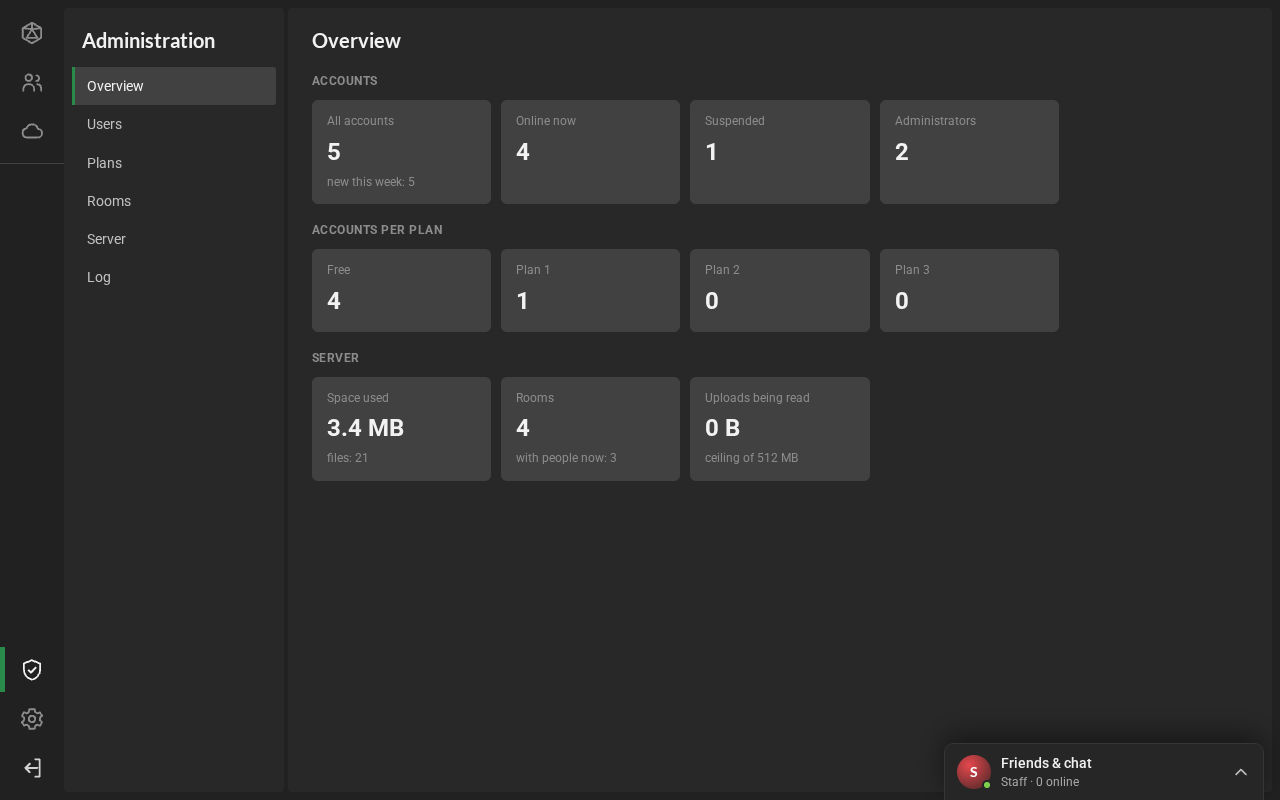
Overview
Section titled “Overview”The server’s numbers right now: the accounts (all of them, the new ones this week, the online ones, the suspended ones and the administrators), the accounts on each plan, the space used and the files, the rooms (and how many have people right now) and the memory of uploads in progress. Tapping an accounts or plan number opens Users already filtered by it; the rooms number opens Rooms.
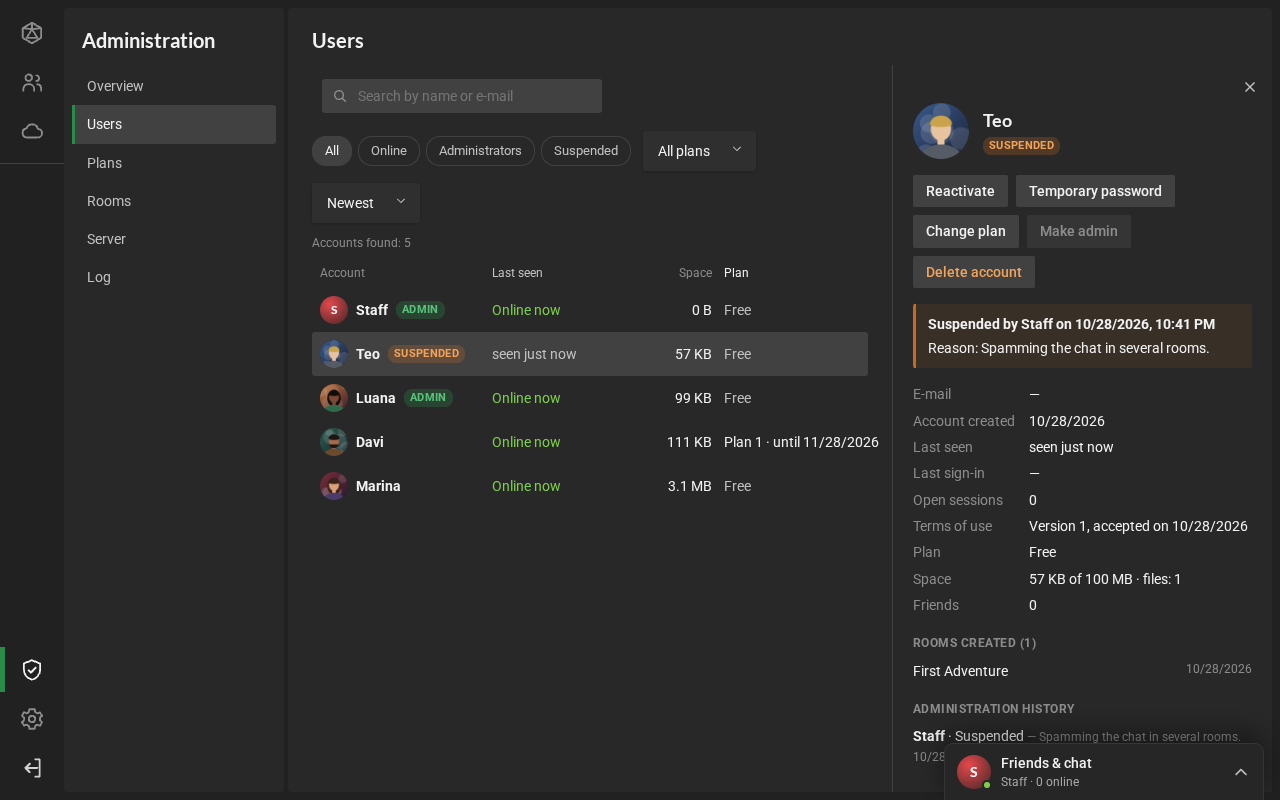
- Search by name or e-mail, the filters All, Online, Administrators and Suspended, the plan (All plans, Paid plans or one plan) and the order: Newest, Name or Last seen.
- Each row shows the account (with the Admin and Suspended badges), the e-mail, when it was created, when it was last seen, how many rooms it created, the space it uses in Desk Cloud and the plan (with the end date, if it has one).
- Clicking an account opens its details, on the right:
- the last sign-in, the open sessions, the terms of use, the plan, the space and the friends;
- for the plan, the end date (or when it ended), who gave it and the internal note;
- the rooms it created;
- its administration history.
- The actions are in the details and in the row’s … (also on right-click, or by holding a finger on it).
What you can do with an account
Section titled “What you can do with an account”| Action | What happens |
|---|---|
| Suspend | Asks for a reason, which can be left empty. The person is signed out right away, on every device, and sees a notice with the reason. While the account is suspended, the sign-in screen says it is suspended, and why. |
| Reactivate | The person can sign in again. |
| Temporary password | RPG Desk suggests a password, which you can change, and copies it. The person is signed out on every device and signs in with the new password, which you give them. Later, they change it in Settings, Account and security. |
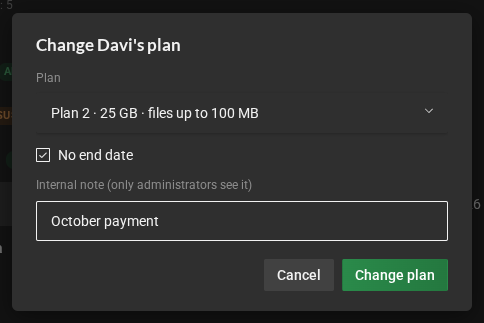
| Change plan | Pick the plan, whether it has an end date (it holds until the end of the chosen day) and an internal note, which only administrators see. If the account uses more space than the new plan gives, RPG Desk warns you first: it cannot upload new files, but nothing is deleted. The person sees the new plan right away. See Plans and space. |
| Make admin and Remove admin | Give or take away access to Administration. For the person, the shield shows up or goes away right away. |
| Delete account | Deletes the account, the rooms it created, its files and messages, for good. To confirm, type the account name. |
Some actions are turned off, with the reason in the tooltip:
- none of them work on your own account (not even changing your own plan: ask another administrator);
- an administrator from the server configuration does not change on screen, except for the plan;
- a promoted administrator can only lose the role or change plans. To suspend, change the password or delete, remove the administrator role first;
- a suspended account cannot become an administrator.
The four plans side by side: the name, the price per month, the space, the largest file, how many accounts are on each one and how many go over its space. See Plans and space.
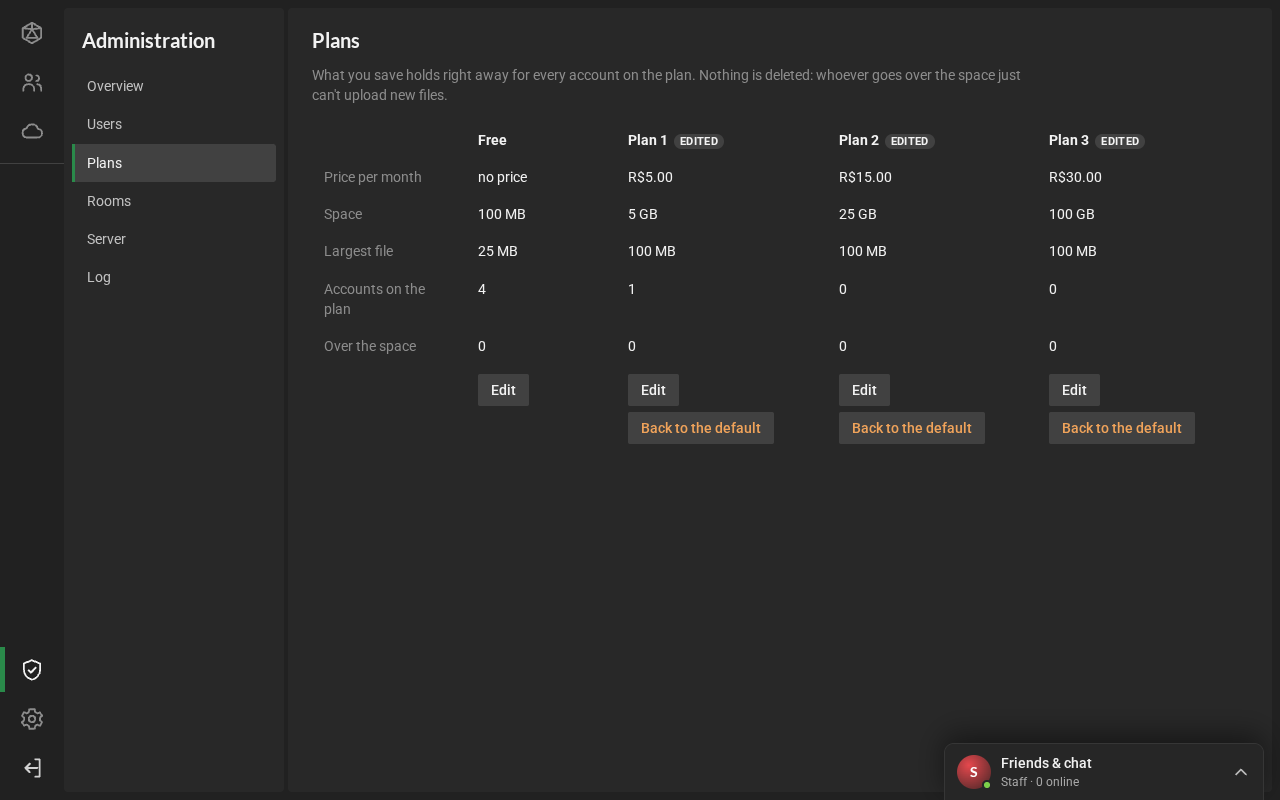
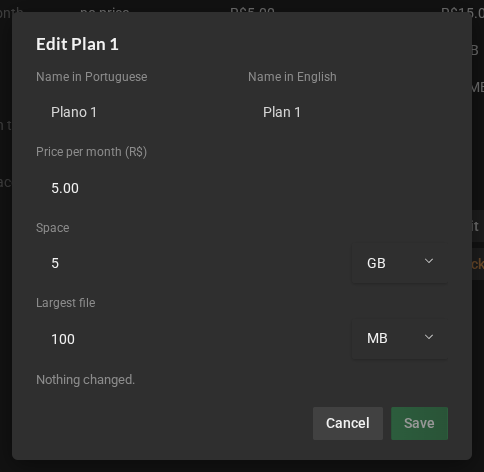
- Edit changes the plan’s name (in Portuguese and in English; empty means the usual name), the
price and what it gives. RPG Desk warns you before saving:
- when a value is out of the allowed range;
- when a plan would have less than the plan below it;
- when the largest file is above the server’s ceiling;
- how many accounts would go over the new space. They can’t upload new files until they free space, and nothing is deleted.
- What you save holds right away for every account on the plan, without signing out and in again.
- Back to the default returns the plan to what comes with RPG Desk.
- The price is kept for payments: for now, people don’t see it.
All the rooms on the server: the name (with the Private and Password badges), the owner, who has joined, who is in it now, its files and their space, when it was created and the last message. The search finds rooms by their name or the owner’s.
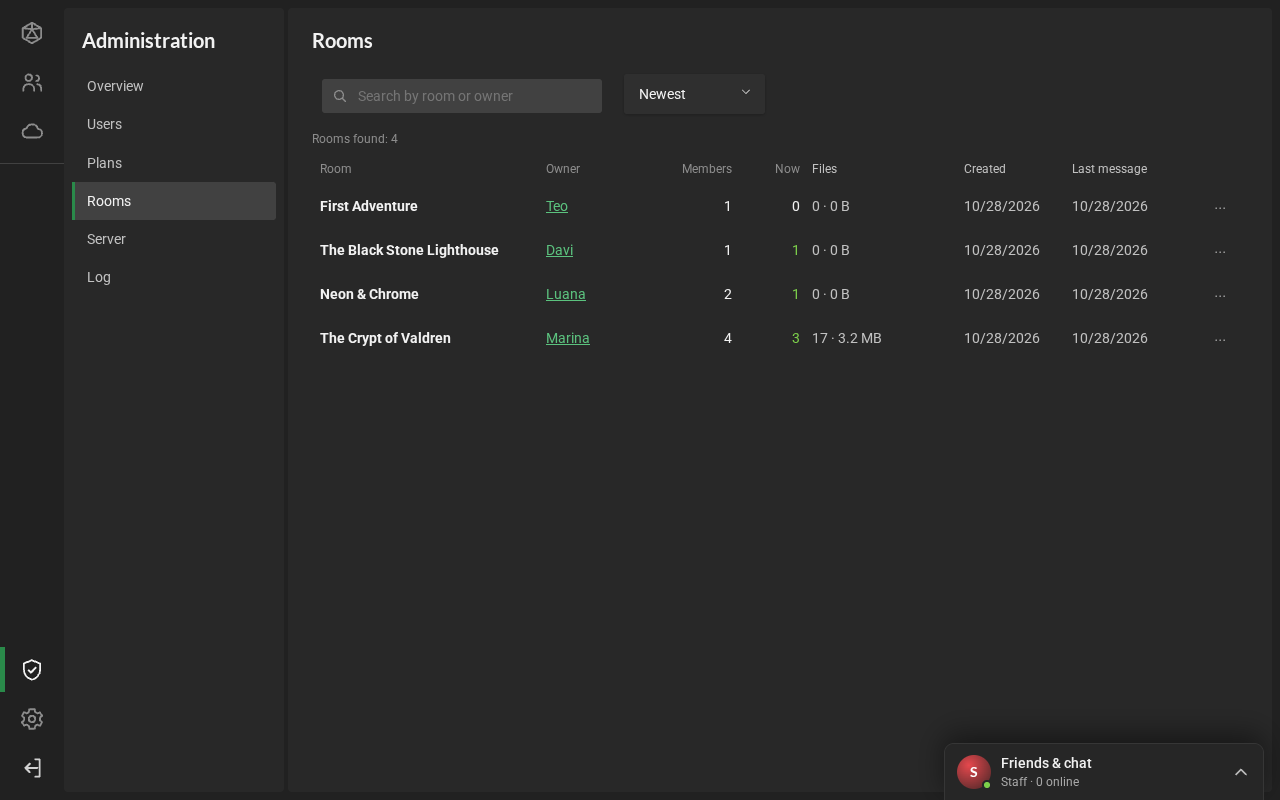
- Clicking the owner opens their account’s details.
- In the row’s … (also on right-click, or by holding a finger on it): See the owner and Delete room. To delete, type the room’s name. The room, its sheets, scene, chat and files go away for good, and whoever is in it leaves right away.
Server
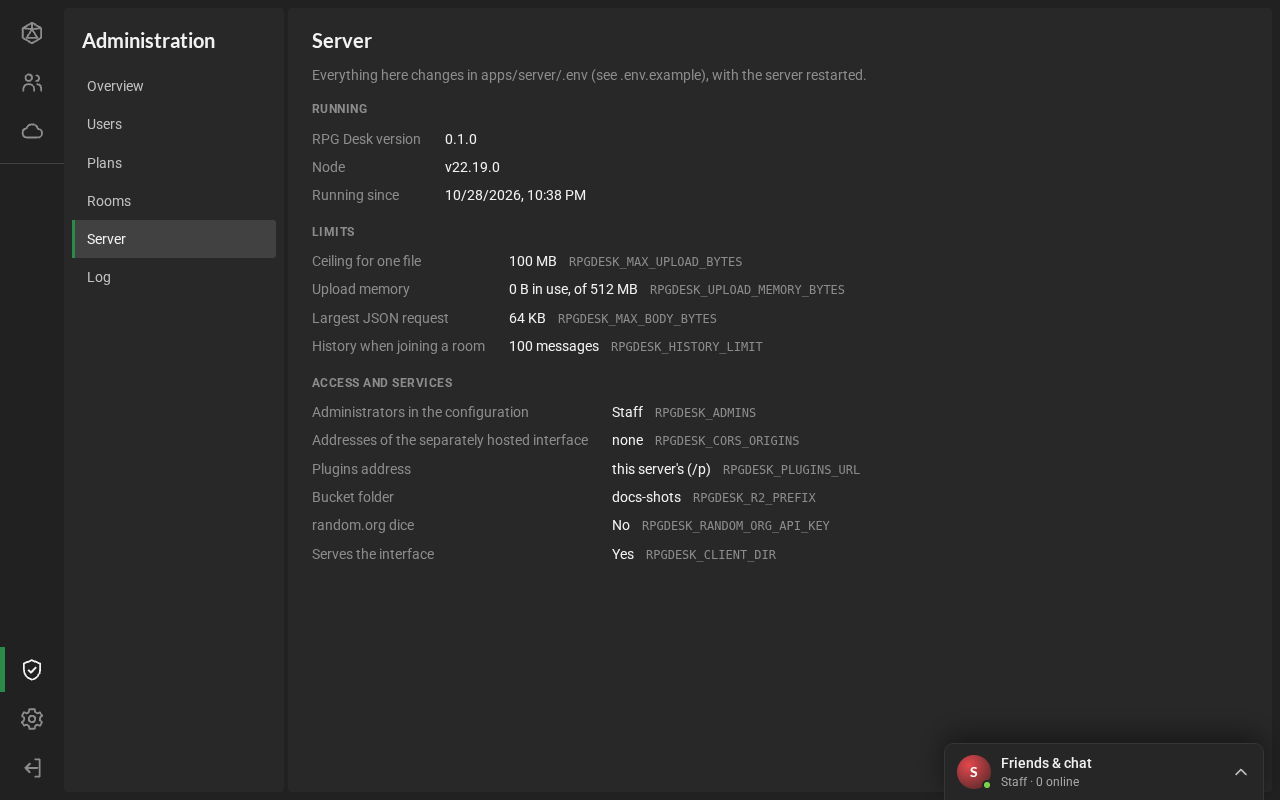
Section titled “Server”The server’s configuration, read only: the version, since when it has been running, the ceiling for
one file, the upload memory, the administrators in the configuration, the allowed addresses and
whether random.org is on. Next to each value is the variable that changes it, in apps/server/.env,
with the server restarted. Passwords and keys never show up here.
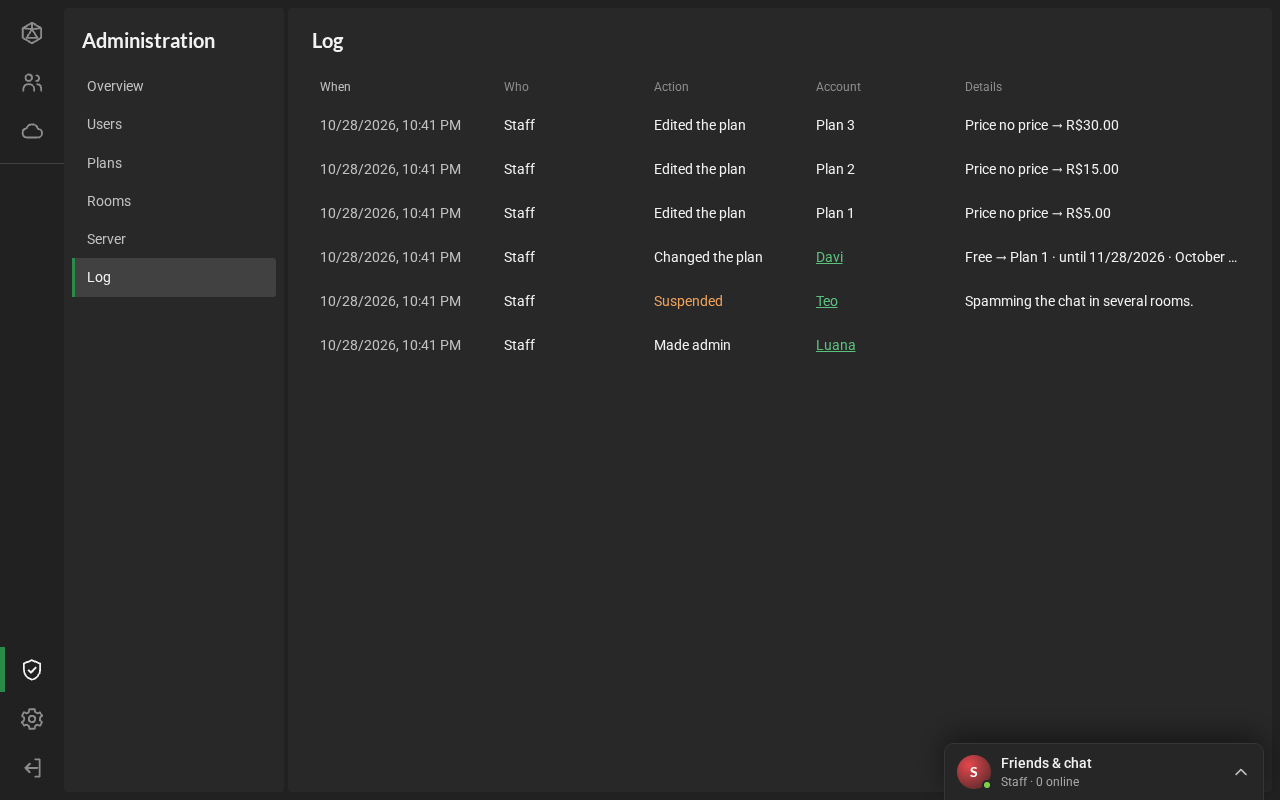
The Log section lists every administrator action, newest first: when, who did it, the action, on which account (or plan) and the details:
- the suspension reason;
- an account’s plan change (“Free → Plan 1 · until 01/23/2027 · note”);
- a plan edit (“Space 5 GB → 10 GB · Price no price → R$ 5.00”);
- the deleted room.
Clicking the account name opens its details. A deleted account stays in the log, with just its name.