Find a room and join
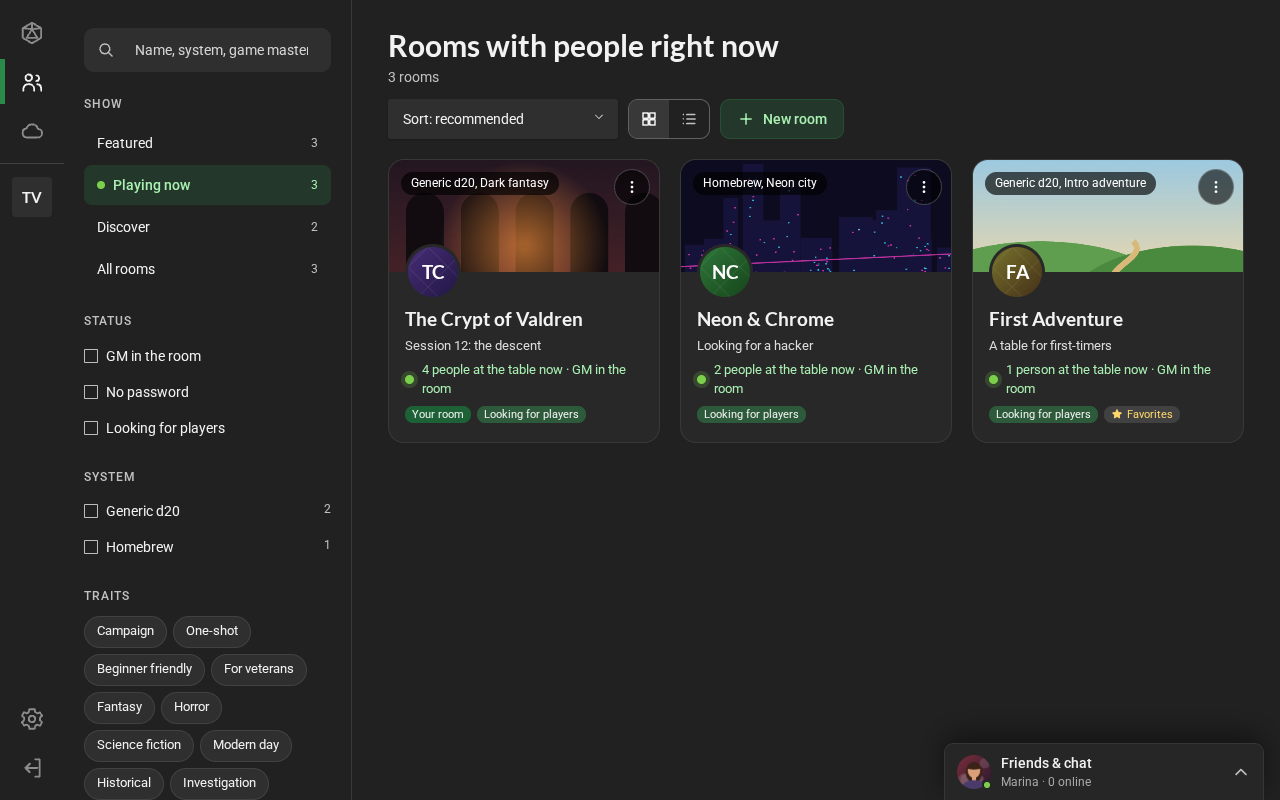
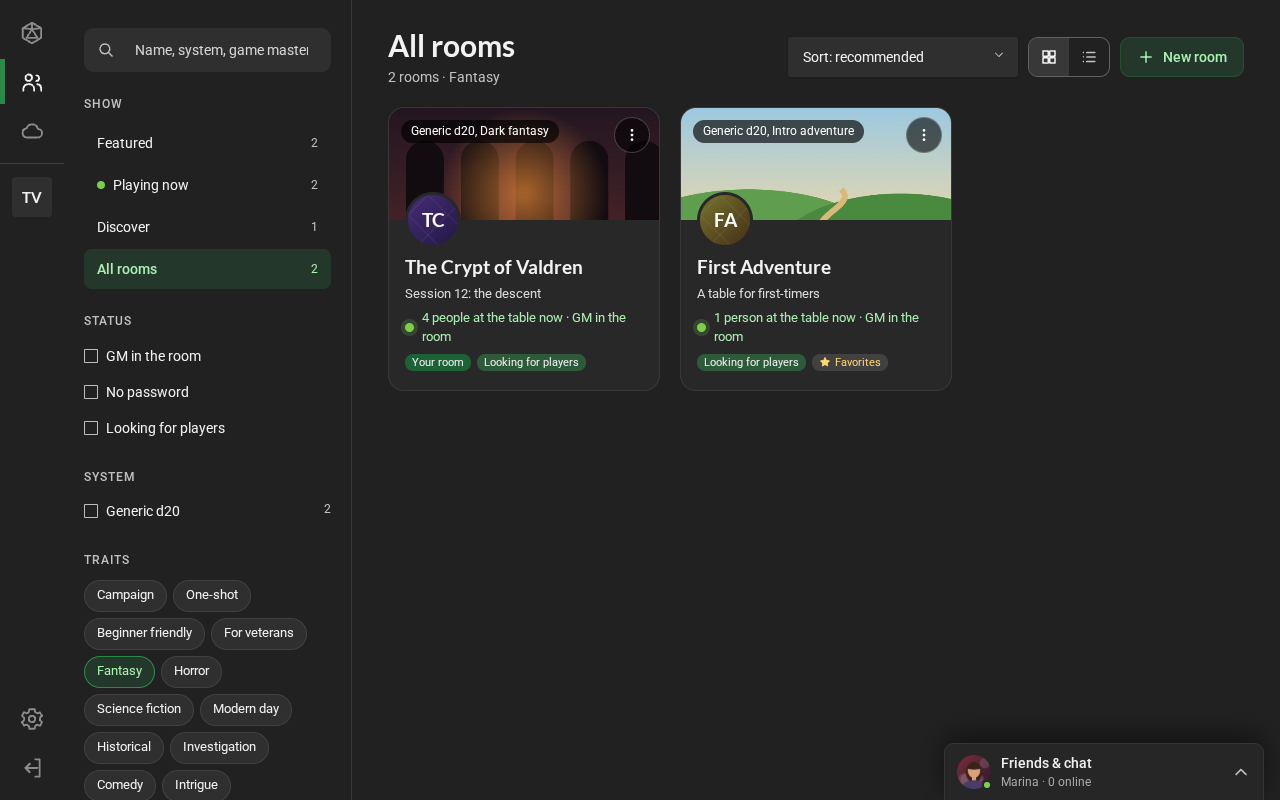
Click Rooms, in the bar on the left, to open Explore. The filters are in the left column and the rooms on the right; click a room to see its details and join. Your own rooms (recent, favorites and the ones you created) are on Home.
The lists
Section titled “The lists”At the top of the column, Show picks the list. Each one says how many rooms it has with the current filters.
| List | What it shows |
|---|---|
| Featured | the most liked and favorited rooms, and the ones with more people online |
| Playing now | rooms with someone in them right now |
| Discover | rooms you have never joined, newest first |
| All rooms | every public room, plus the ones you run |
Above the rooms, on the right:
- Sort switches between recommended and most people online;
- Grid and List change how the rooms are shown: cards with a cover, or one row per room;
- New room creates a room.
The list refreshes by itself while it is on screen.
The room card
Section titled “The room card”Each card shows the cover with the system, the name, the game master’s status message, how many people are at the table right now and whether the game master is there. The badges tell you more:
- Your room: you created it;
- You are GM: you are one of its assistant game masters;
- Looking for players: the game master is taking new people;
- Password: you need the password to join;
- Favorites: it is in your favorites;
- 18+: content for adults.
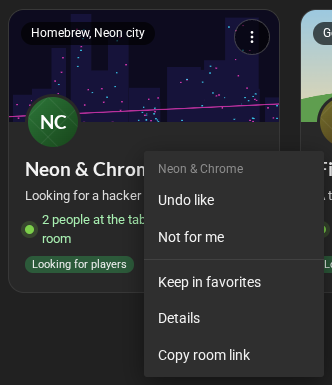
Right-click a card (or use its actions button) to:
- Like this room or Not for me: these count for Featured;
- Keep in favorites;
- Details;
- Copy room link: a link to send to someone.
Details and joining
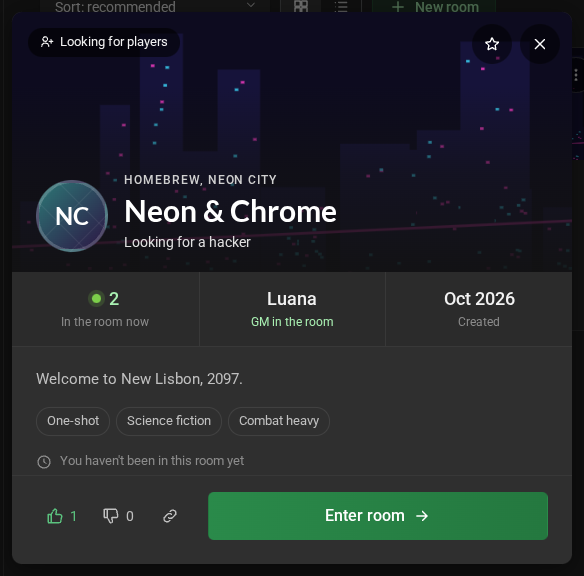
Section titled “Details and joining”Click the card to open the details. The cover shows the system, the name, the status and the badges. Right below are how many people are in the room now, the game master and when the room was created; then the description, its traits and your last visit. Enter room takes you in.
The details also let you keep the room in your favorites (the star, at the top), like it, mark it “not for me” and copy its link, next to the button that takes you in.
- If the room has a password, the details show the Room password field.
- Talk to the GM opens a chat with the room owner, to ask something before joining, even if you aren’t friends yet.
- The first time, you join as a spectator: you can watch and chat, but you have no sheet. The game master makes you a player. Next time, you come back with the role you had.
- If you are already in the room, the button becomes Back to the room.
The filters
Section titled “The filters”The filters work on any list, and the ones that are on show up under the title:
- the search, at the top: it looks in the name, system, game master, status and description. It also finds traits by name, like “fantasy” or “beginner friendly”;
- Status: GM in the room, No password and Looking for players;
- System: the systems of the rooms in the list, each with how many rooms it has. Tick one or more;
- Traits: one click shows only rooms with the trait (it turns green); a second, only rooms without it (it turns orange and struck through); a third removes the filter.
Clear filters turns everything off at once. On a phone, the search and the lists stay at the top, and the rest opens from the Filters button.
Join through a link
Section titled “Join through a link”The game master can send the room’s link (Copy room link, in the card’s menu). Whoever opens the link goes straight into the room, after signing in to RPG Desk. If the room has a password, they will need it: in that case, they find the room in Explore and type the password in the details.