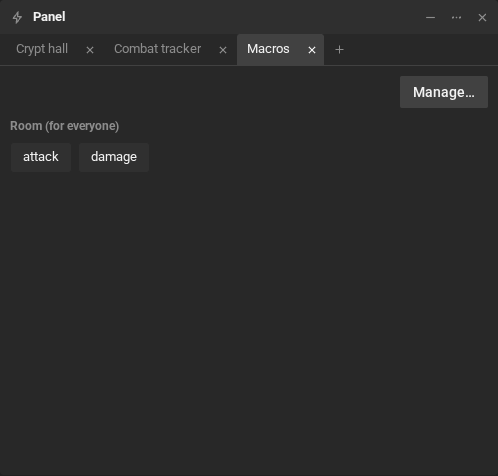
Macros
A macro keeps one or more lines, just as you would type them in the chat, and runs them all with a
single command. The /attack macro, for example, can narrate the blow and roll the hit:
/me swings the axe/r 1d20+5: AttackCreate a macro
Section titled “Create a macro”- Type
/macrosin the chat, or click Manage macros (the lightning bolt, in the message box). - Pick the tab: Room (for everyone), Mine in this room or Mine (global).
- Click New macro, give it a name and write the lines, one per command.
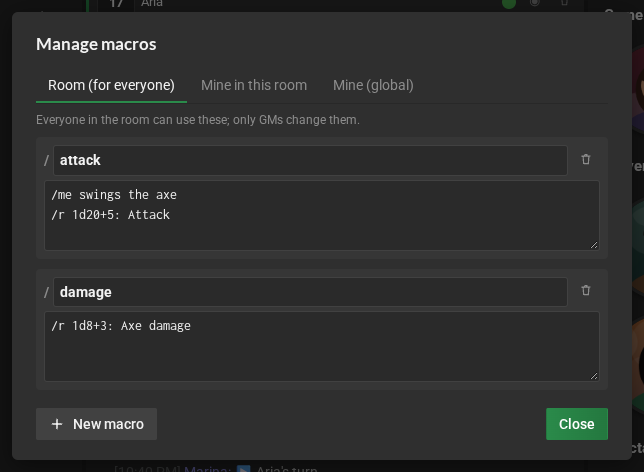
The three tabs:
| Tab | Who uses it | Where it is kept |
|---|---|---|
| Room (for everyone) | everyone in the room; only game masters create and change them | in the room |
| Mine in this room | only you, only in this room | in this browser |
| Mine (global) | only you, in every room | in this browser |
- The name has no spaces and no
/, and has up to 30 characters. - Each macro has up to 20 lines: text,
/r,/meor any other command.
Type / and the macro’s name in the chat: /attack. Uppercase and accents do not matter. If two
macros have the same name, the room’s wins, then yours for this room, then your global one.
A macro can call another one, up to three levels deep, and one run goes through at most 100 lines.
The Macros table
Section titled “The Macros table”The Macros table comes with every room: open it from the room menu (right-click the room’s icon, in the bar on the left) → Tabs → Macros. It opens as a tab, next to the other tables, with one button per macro: one click runs the macro in the chat. Manage… opens the manager.