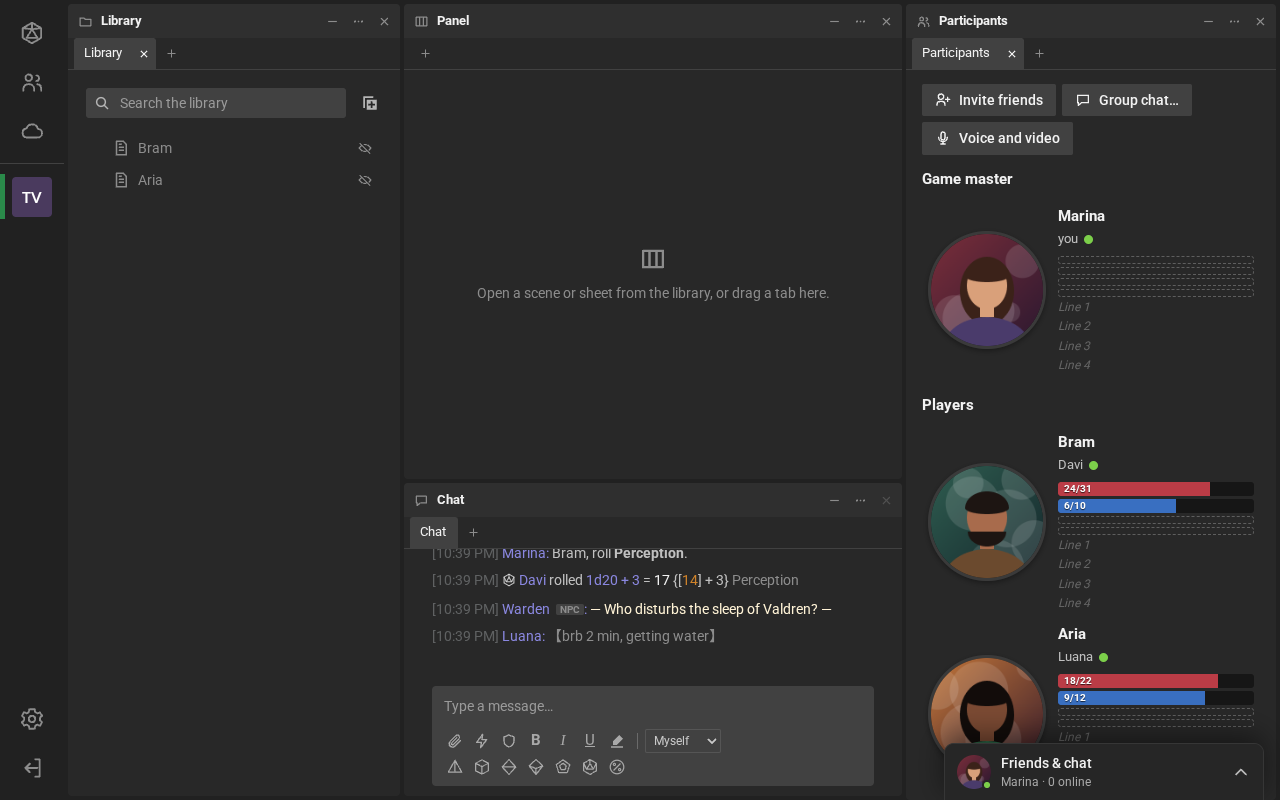
The room screen
Inside a room, each tool is a tab: the Library, the Chat, the Participants, each scene and each sheet. Tabs fit into spaces, side by side or stacked, and you group the tabs as you like. When you join, you see the Library on the left, an empty space and the Chat in the middle and the Participants on the right. The empty space takes the first scene or sheet you open.
The room’s icon
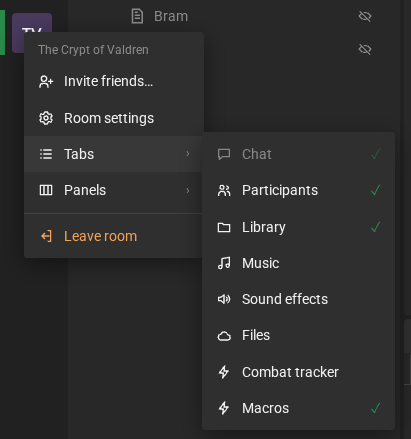
Section titled “The room’s icon”An open room gets an icon, with its initials, in the RPG Desk bar on the left. Hovering over it shows the name.
- Click goes back to the room, if another screen (Home, for example) is open.
- Right-click (on touch, press and hold) opens the room menu, with the Tabs, which open and close the tabs and, at the end, arrange the screen (see Tabs and spaces).
The conference is in the Participants tab, under the Voice and video button (see Voice and video).
Tabs and spaces
Section titled “Tabs and spaces”At the top of each space sits the tab strip: the tabs, each with its icon and name, a + after the last one, an empty part and, on the right, Collapse and More space actions (⋯). A space has no name and no bar: it is the tabs it holds.
-
Tabs: click a tab to see it, and its × to close it. The room Chat does not close. Closing the last tab leaves the space empty, in place, until you open something else or drag a tab into it. The empty space’s × takes it off the room.
-
Where a new tab opens: in a space that already exists. A scene goes with the other scenes, a sheet with the sheets, a conversation with the chat and a table with the tables. The first of each kind goes to an empty space, if there is one; otherwise, to the last space you clicked (not counting the Library and the Participants, where you open things from).
-
Drag a tab, at any time:
- onto another space’s strip, it goes there, where you drop it (a line shows the spot);
- onto the middle of another space, it goes to the end of it;
- near the edge of a space, that space splits, and the tab gets a new space on that side;
- onto the edges of the room (the dashed strips that show while you drag), it gets a new column or strip.
The last tab to leave a space takes the space with it. Holding Ctrl or Alt when you drop leaves a copy (of the chat, the library, a scene…). Esc gives up.
-
Drag the whole space: grab the empty part of the strip, after the +. The space goes with all its tabs (the name of the tab in view follows the mouse, with “+2” if two more come along):
- dropped on another space’s strip, or in its middle, the tabs join that space’s tabs;
- near the edge of another space, that space splits, and the dragged one goes on that side;
- on the edges of the room, it gets a new column or strip.
On touch, holding the empty part opens the space’s menu.
-
Right-click a tab: Open in new window, Move to (with another space’s tabs, even in a window of its own, or into a new space beside it), Duplicate and Close. On touch, press and hold the tab.
-
The strip’s +: opens the Chat, the Library, the Participants, the Music, the Sound effects, the Files, the room settings or a table right there. What is in another space moves to this one.
-
The Tabs menu, in the room menu, lists the Chat, the Participants, the Library, the Music, the Sound effects, the Files and the room tables, such as the Combat tracker and the Macros. A ✓ marks what is in view. Clicking an item without a ✓ opens the tab (or brings it into view); clicking one with a ✓ closes it. At the end of the menu sit Arrange the screen, Restore the starting layout and New window, which opens a window that works like the room (see Windows and several rooms).
-
Collapse: the Collapse button leaves only the space’s tab strip, and the others take the room. Alone in a column, or side by side with others, the strip stands up, with the tabs lying down. Clicking a tab, or Expand, opens it again.
-
More space actions (⋯): Open in new window, Maximize, Move to (left, center or right) and Close the space. Right-clicking the empty part of the strip opens the same menu.
-
Maximize: in More space actions (⋯), or with a double-click on a tab, leaves the space alone on the screen. Esc, Restore in the same menu or another double-click goes back to normal.
-
Open in new window: takes the space, with all its tabs, to a window of its own, which works like the room and takes other tabs. To take only one tab, right-click it. See Windows and several rooms.
-
Width: drag the divider between two spaces.
Each room’s arrangement (where each space sits, the open tabs and the widths) is saved on this computer. To bring one room back to the initial arrangement, use Tabs → Restore the starting layout; for every room: Settings → Troubleshooting → Forget the room arrangements.
In a narrow window (on a phone, for example), the spaces merge into one, with all the tabs side by side.
Arranging the screen (Ctrl+E)
Section titled “Arranging the screen (Ctrl+E)”You drag tabs and spaces at any time. To put a tab in an exact spot, like the music in a strip at the bottom or the tracker in a column on the right, Ctrl+E (Cmd+E on a Mac) turns on layout editing, from anywhere in the room, even with the cursor in the chat. Tabs → Arrange the screen turns it on too.
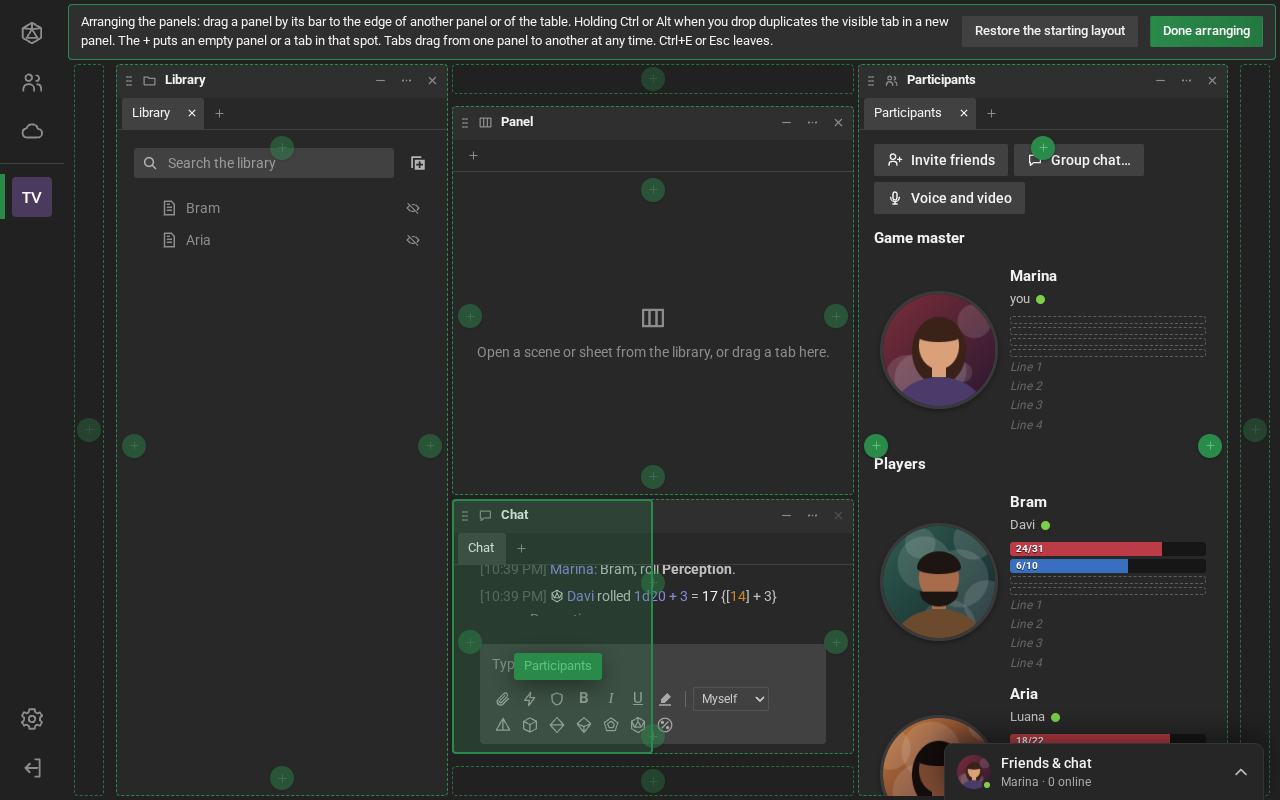
- Put a tab in a spot: the + on each space’s edges and on the room’s edges opens the Put here menu, with the tabs: the chat, the participants, the library, the music, the sound effects, the files and the room tables. A tab already in the room moves; the rest opens there, in a new space.
- Move: as outside the mode, drag the tab, or the whole space by the empty part of its strip. In the mode, the edges of the room open up, which makes dropping on them easier.
- Duplicate: drop while holding Ctrl or Alt to leave a copy of the tab (for a whole space, of the tab in view), or right-click the tab → Duplicate. It works for the chat, the participants, the library, the scene (the same map at another zoom), the music and the sound effects.
- Remove: More space actions → Close the space. The Chat’s space does not close, but it can go anywhere; if the middle of the room ends up empty, drag another space (or a tab) there.
- Size: drag the dividers between spaces.
- Restore the starting layout, on the editing strip or in the Tabs menu, goes back to the initial arrangement, with the empty space.
To leave: Ctrl+E again, Esc or Done arranging. Everything is saved right away. In a narrow window the spaces stay together and can’t be arranged: widen the window.
The room menu
Section titled “The room menu”Right-click the room’s icon, in the bar on the left (on touch, press and hold). The room’s name shows at the top of the menu.
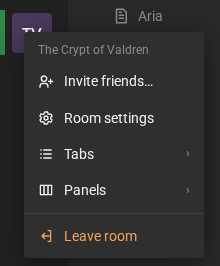
- Invite friends…: pick friends and send the invite (see Profile, friends and conversations).
- Talk to the GM: opens a direct chat with the room owner, even if you aren’t friends (see Chatting with people who aren’t your friends). The owner doesn’t have this item.
- Room settings: game masters see every page (see Room settings). For everyone else, the item is called Room plugins and shows only the plugins.
- Tabs: opens and closes the tabs and, at the end, arranges the screen and opens a new window (see Tabs and spaces).
- Leave room asks first. To come back, join again from Home or Rooms.
Moderating the chat happens in the chat itself (see Roles and moderation).