Your preferences
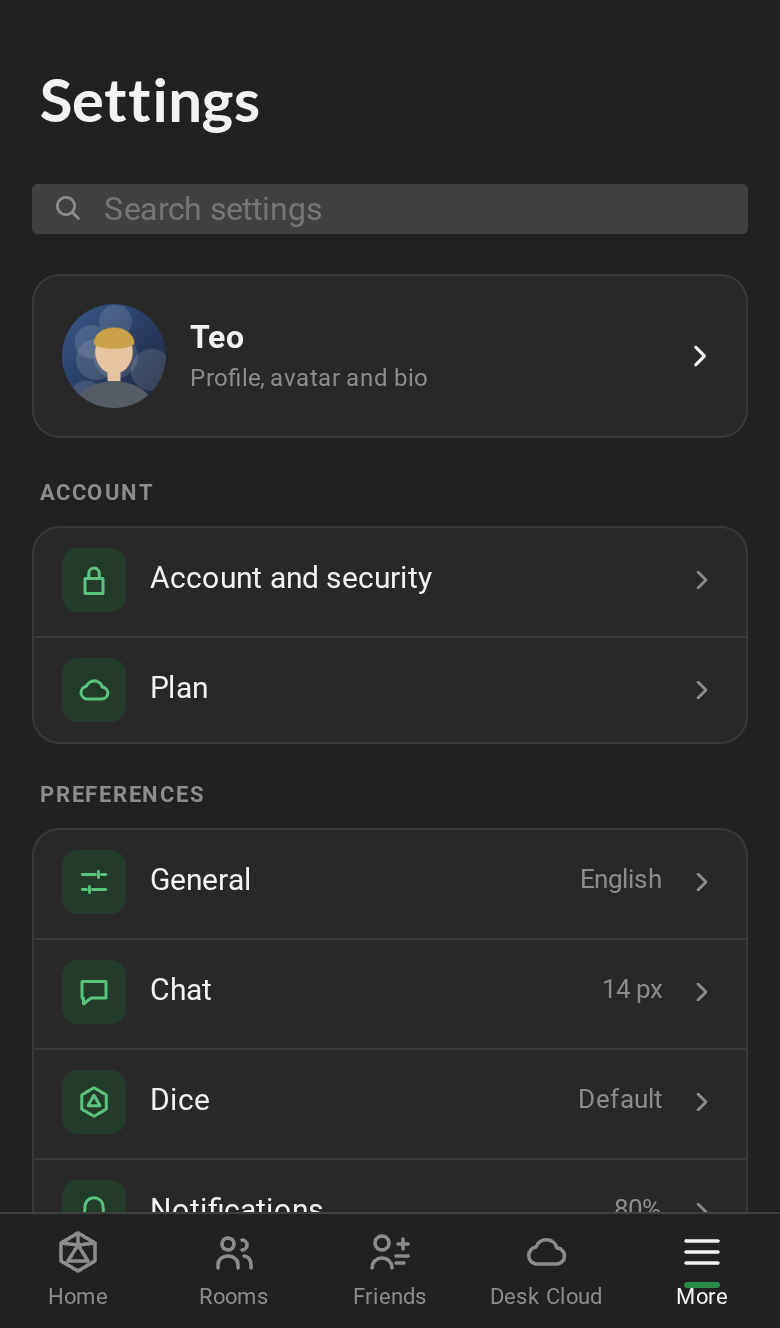
Click Settings, at the bottom of the bar on the left (on a phone, under More). The sections are in three groups: Account, Preferences and Support. Plugins are not here: they belong to each room and live in Room settings → Plugins (see Room plugins and tables).
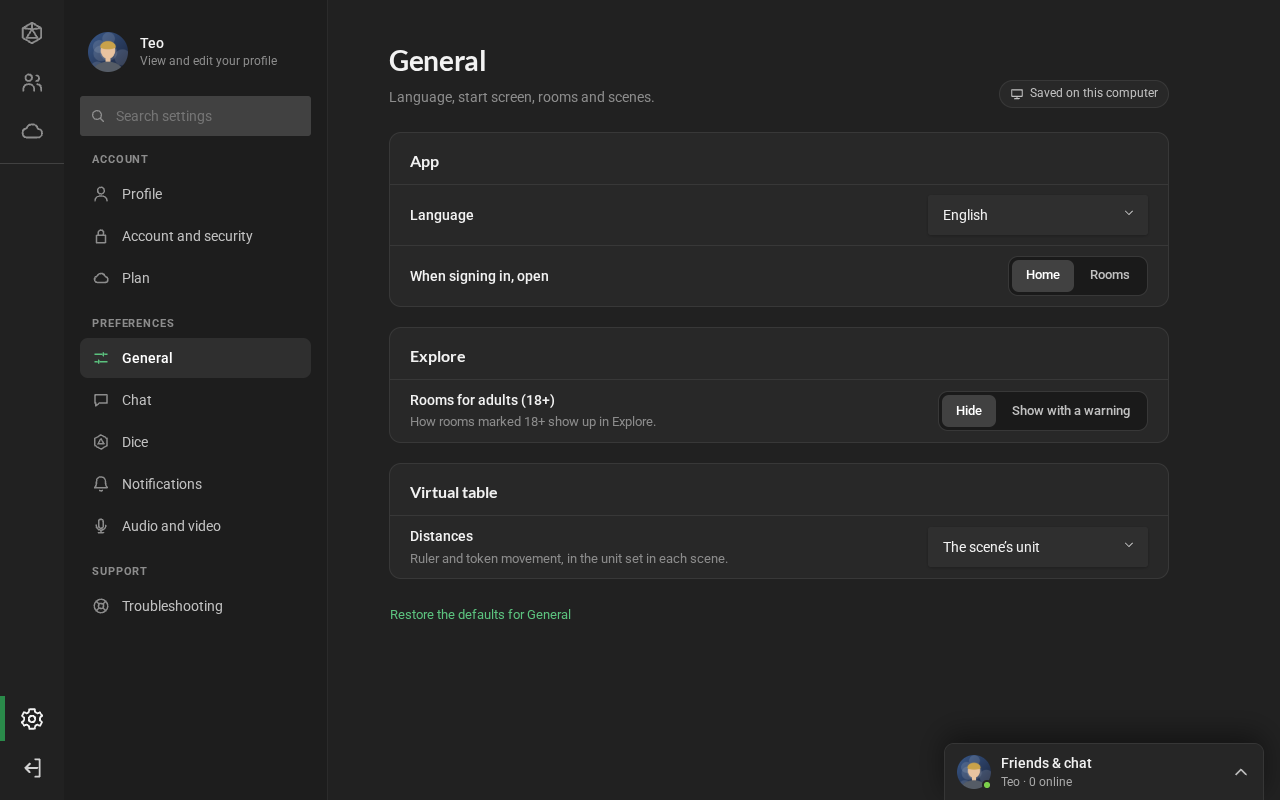
- Search settings, at the top of the bar: type what you are looking for (“sound”, “dice”, “language”) and click the result. The section opens and the row is highlighted for a moment.
- Where it is saved: each section says at the top. Saved to your account (Profile, Account and security, and Plan) applies everywhere. Saved on this computer (the preferences) stays in this browser, or on this computer, in the app: on a new computer, they start at their defaults.
- Preferences save right away, with a “Preference saved” notice. At the end of each preferences section, Restore the defaults for… resets only that section (RPG Desk asks first).
Profile
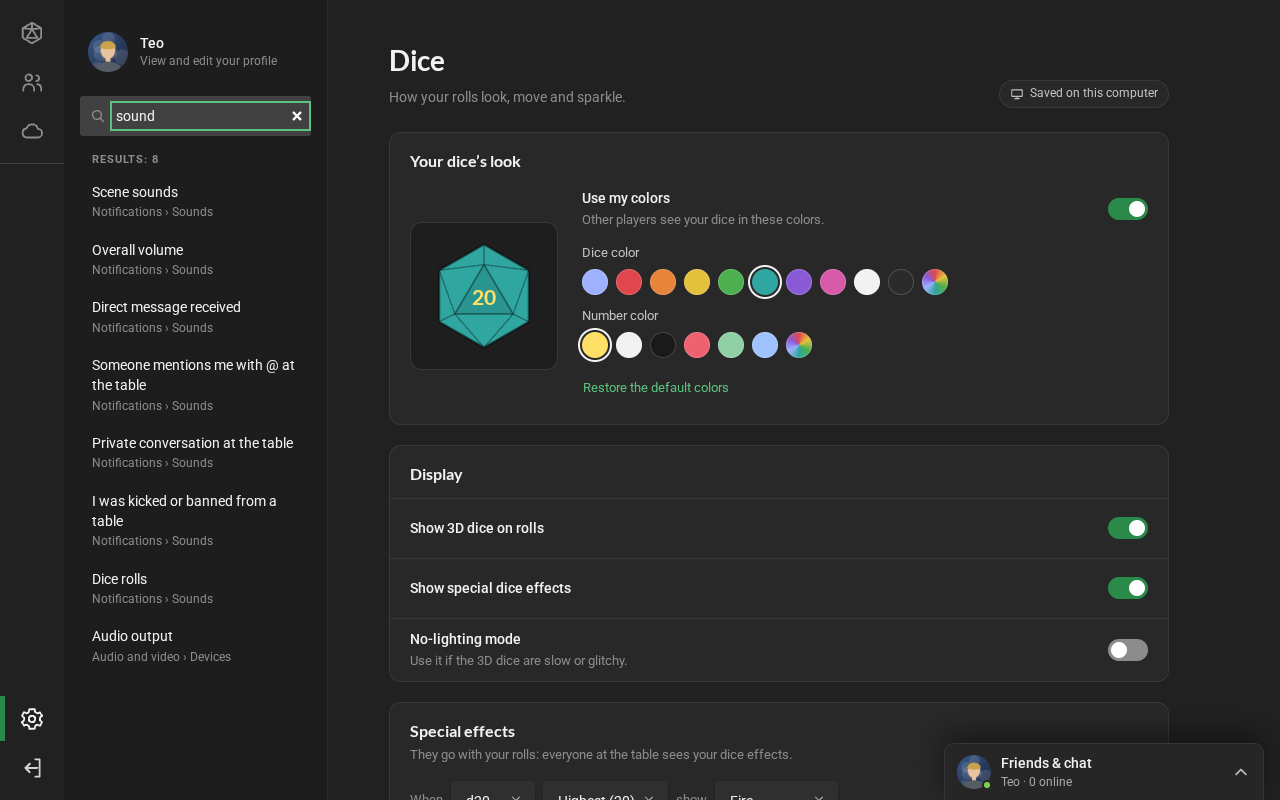
Section titled “Profile”Your picture and what others see on your profile, with the How others see you preview beside it. When you change a text, the Discard / Save profile bar shows up. See Profile, friends and conversations.
Account and security
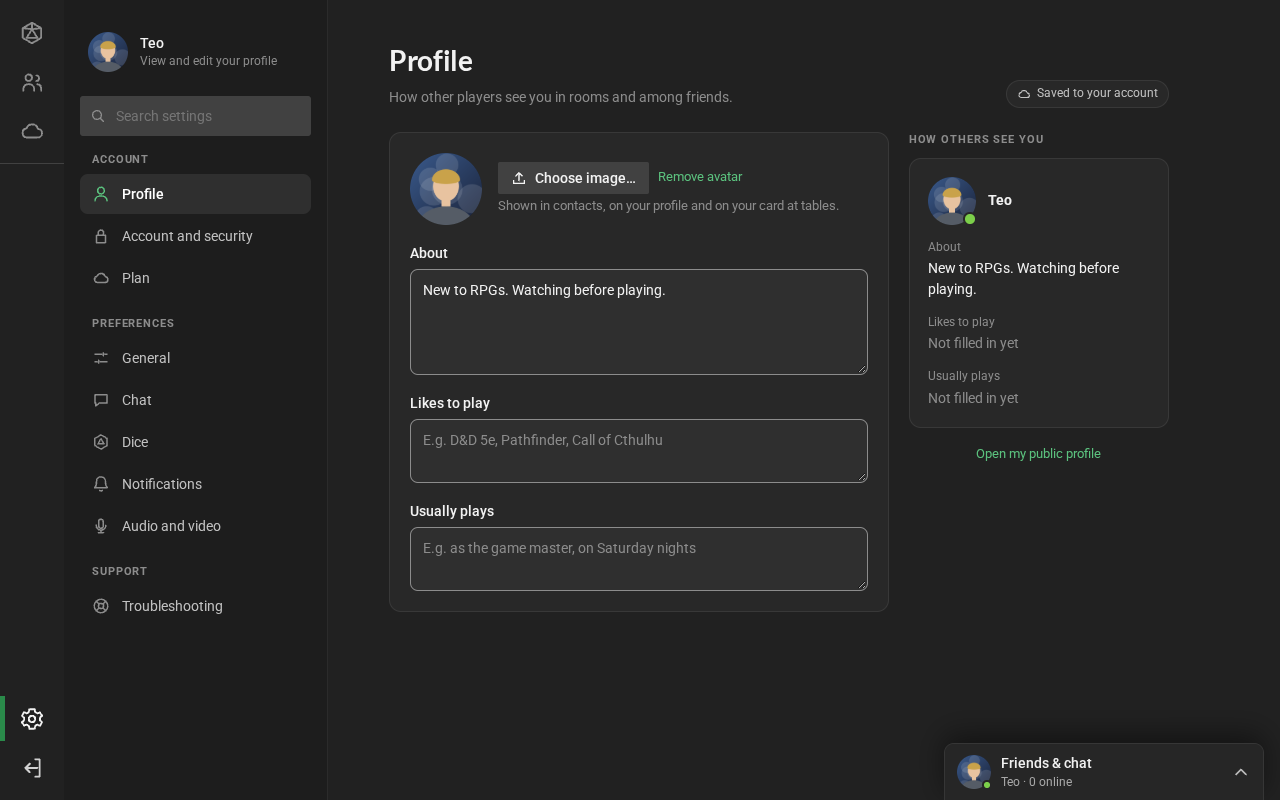
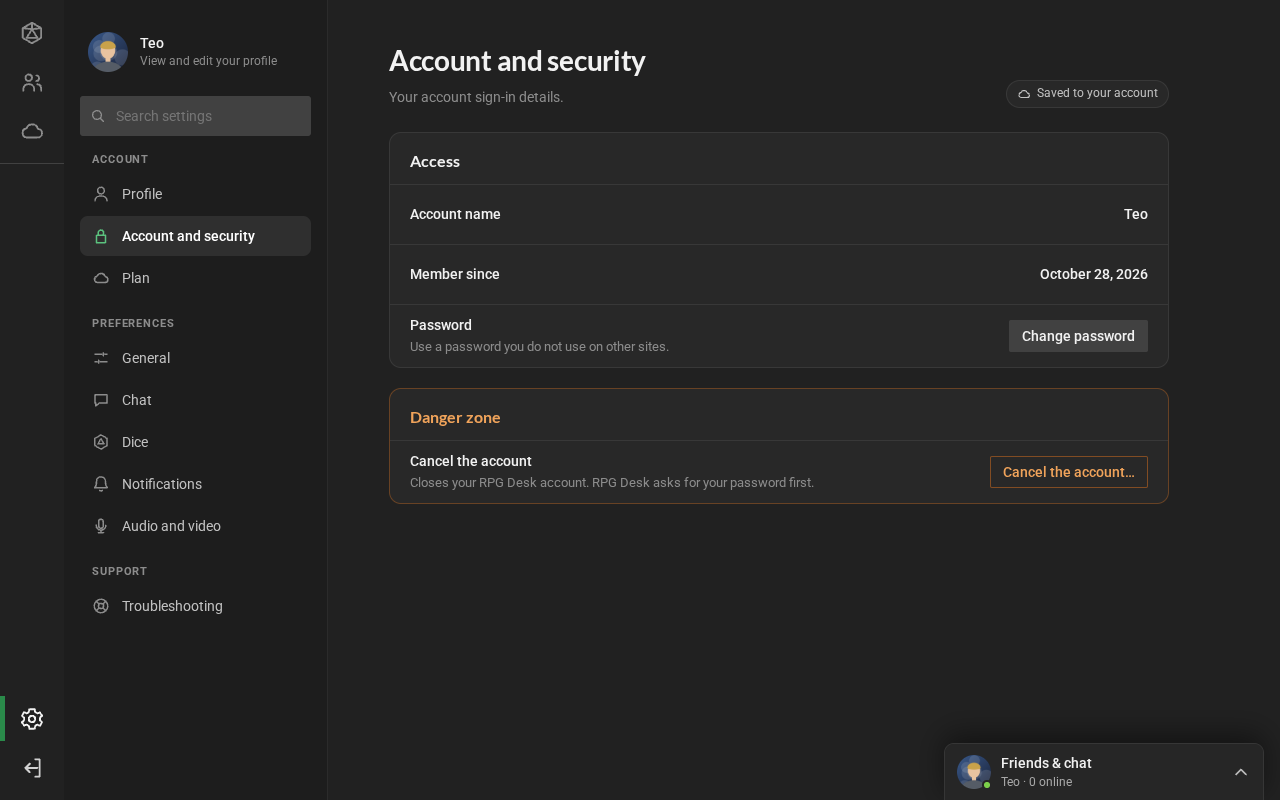
Section titled “Account and security”The account name, since when it exists, Change password (asks for the current password and the new one twice), Privacy and, in the Danger zone, Cancel the account….
- Get messages from people who aren’t your friends: on, anyone can send you a direct message (the GM of a table, someone in the room you are in). Off, only your friends and the people you wrote to can. It applies right away, on any computer. See Chatting with people who aren’t your friends.
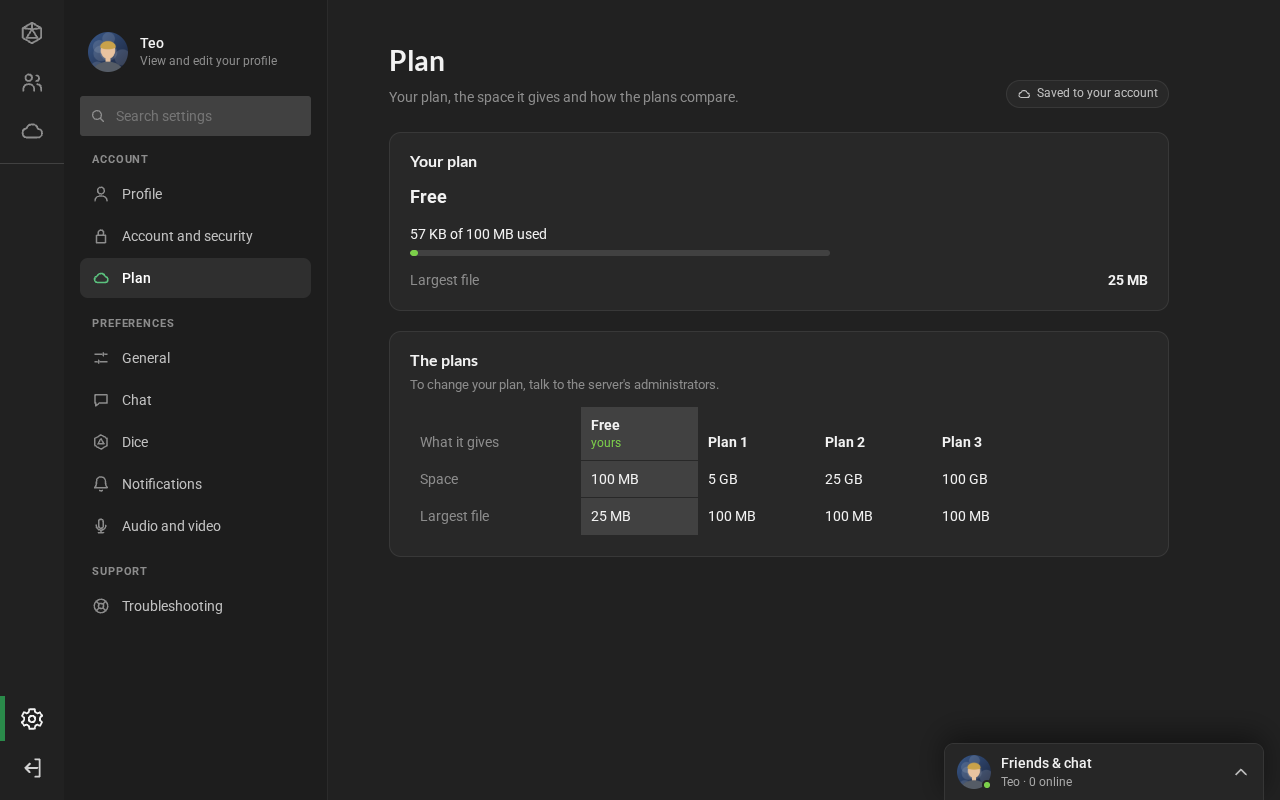
Your plan and until when it is valid, the space used, the largest file and every plan side by side. See Plans and space.
General
Section titled “General”- App: the Language and When signing in, open (Home or Rooms).
- Explore: Rooms for adults (18+): Hide (the default) or Show with a warning.
- Virtual table: Distances on the ruler and token movement: the scene’s unit, meters, feet or both (“6 m (20 ft)”). It only changes what you see.
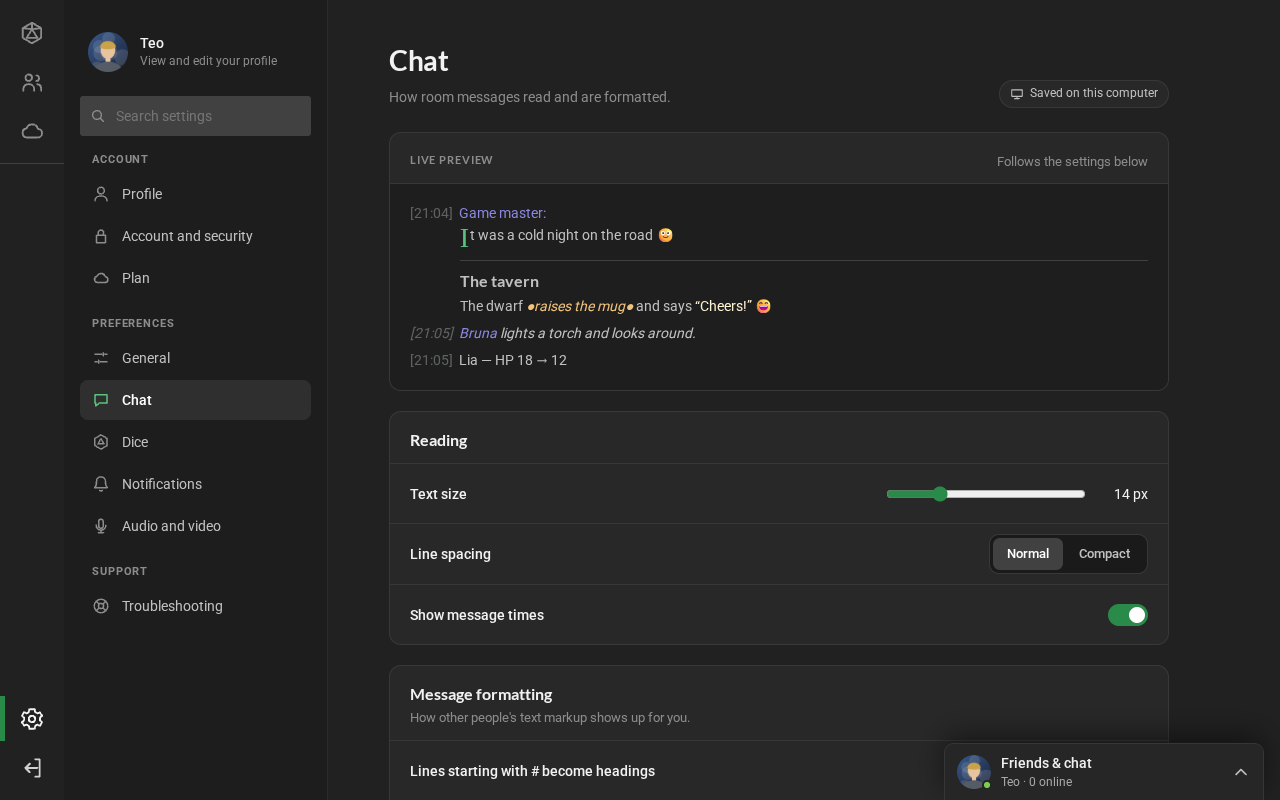
- Live preview: at the top, two sample lines change right away with what you pick below.
- Reading: Text size, Line spacing and Show message times.
- Message formatting: how other people’s text markup looks to you: headings with
#, separators with---, the emoji from:)and:sorriso:, and the drop cap with{L}. - In the room: Post a chat notice when the players’ bars change.
- Friends & chat panel: Show the Friends & chat panel. Turned off, the panel disappears from the corner of every screen, along with the chat windows (see Profile, friends and conversations). Messages from friends still arrive and are kept; notices follow Notifications.
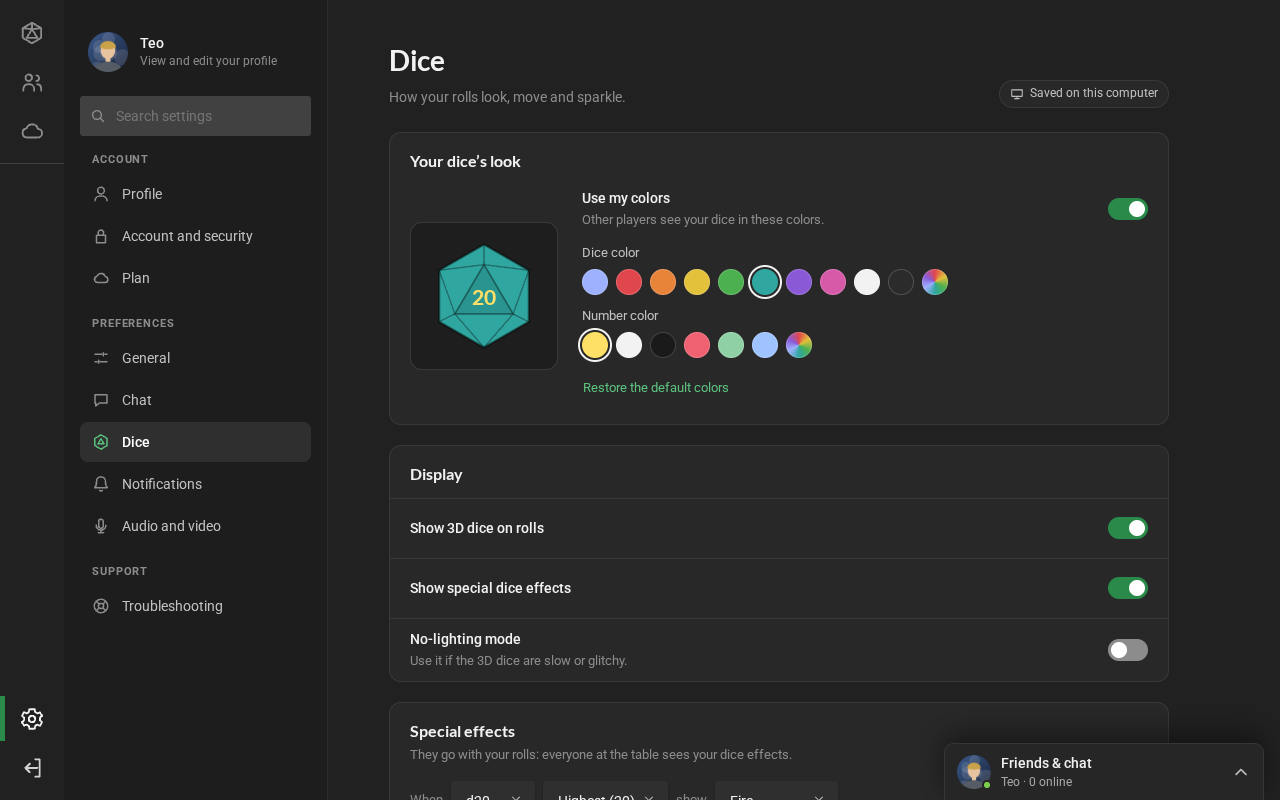
- Your dice’s look: Use my colors, the dice color and the number color (the swatches or another color), with the d20 preview. Others see your dice in these colors.
- Display: Show 3D dice on rolls, Show special dice effects and the No-lighting mode, for when the 3D dice are slow or glitchy.
- Special effects: the effects that go with your rolls, and Test to see each one. See Dice.
Where the dice numbers come from is a room rule, picked by the game master: see Game rules.
Notifications
Section titled “Notifications”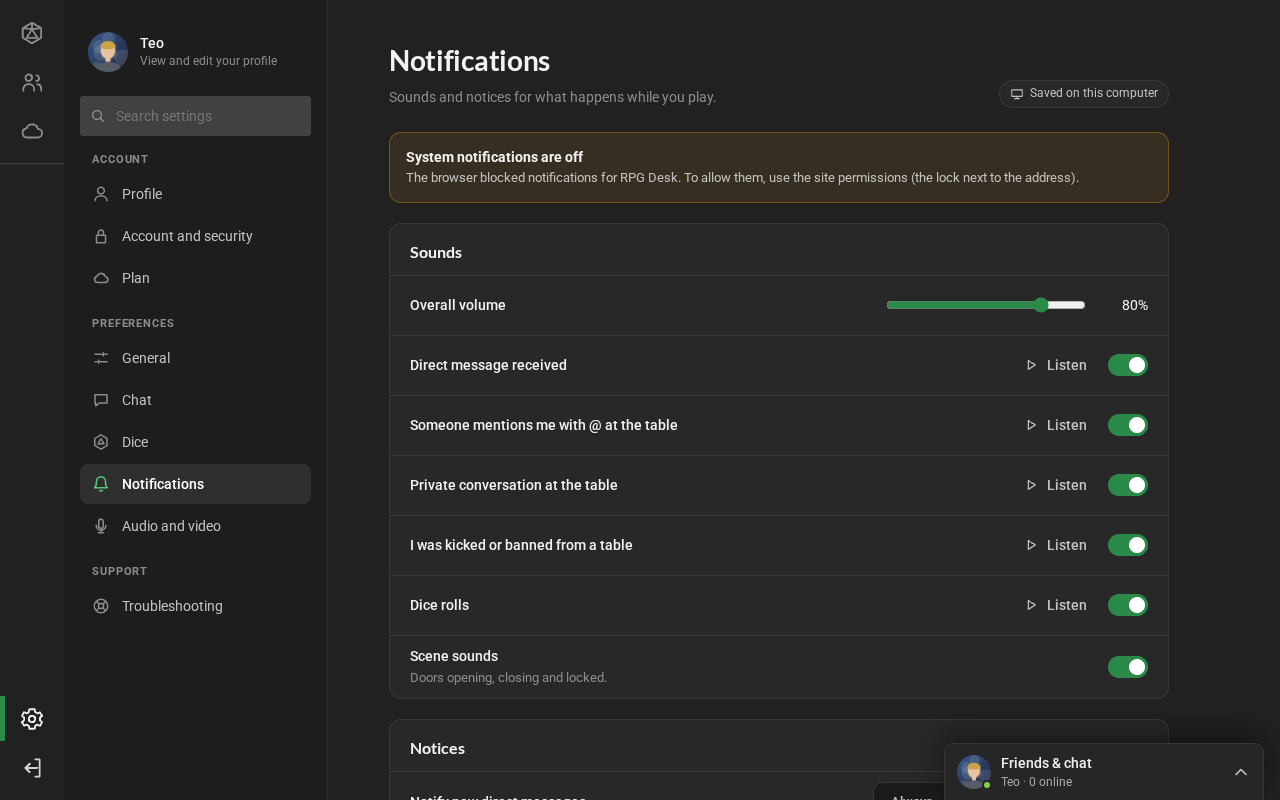
- If system notifications are off for RPG Desk, a notice at the top asks for permission (Allow notifications) or explains how to allow them in the browser.
- Sounds: the Overall volume and what plays a sound (direct message, @ mention, private conversation in the room, being kicked, rolls and scene sounds, such as doors). Listen plays the sample sound.
- Notices: Notify new direct messages (Always, In the background or Never) and Flash the window title when something arrives while RPG Desk is in the background.
Audio and video
Section titled “Audio and video”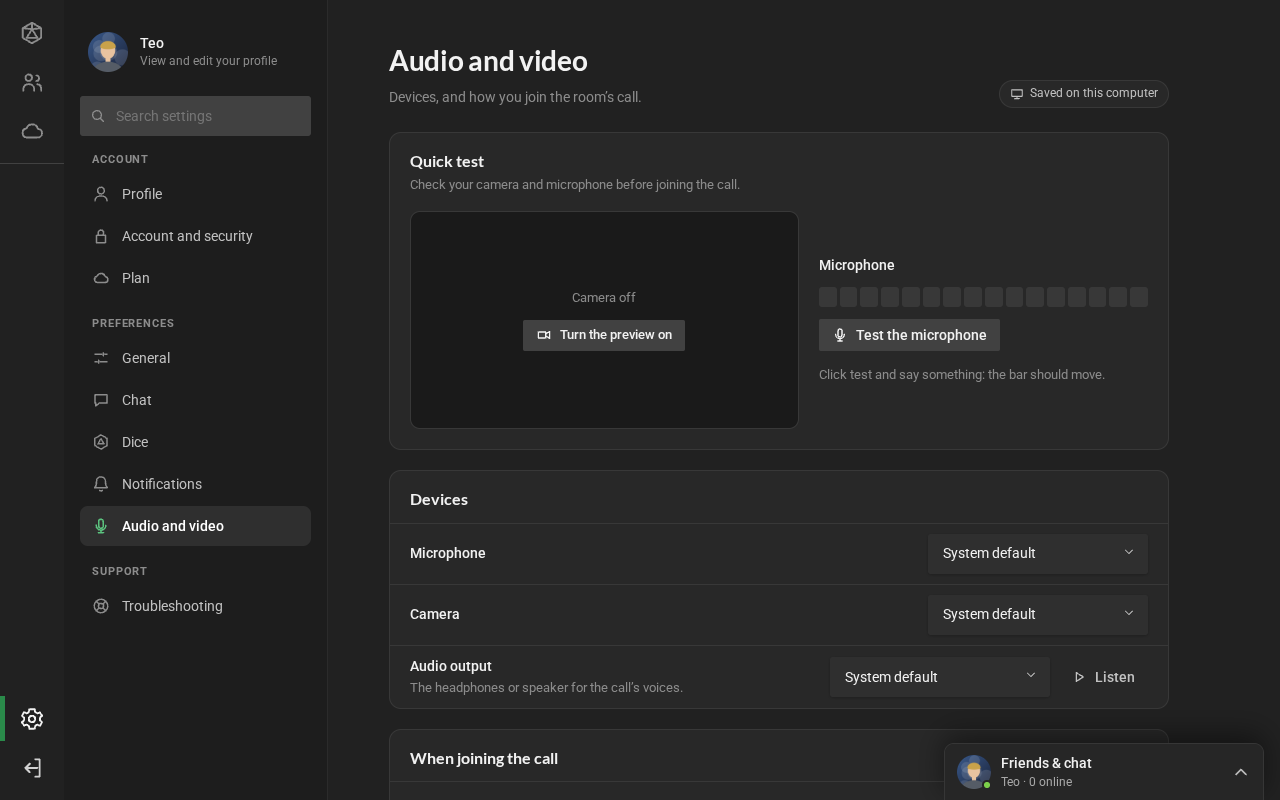
- Quick test: Turn the preview on shows your camera, and Test the microphone moves the bar when you speak.
- Devices: the Microphone, the Camera and the Audio output (the headphones or speaker for the call’s voices; Listen plays a test sound). Some browsers, such as Safari, do not let you pick the output: the row does not show.
- When joining the call: join with the microphone and with the camera on. See Voice and video.
Troubleshooting
Section titled “Troubleshooting”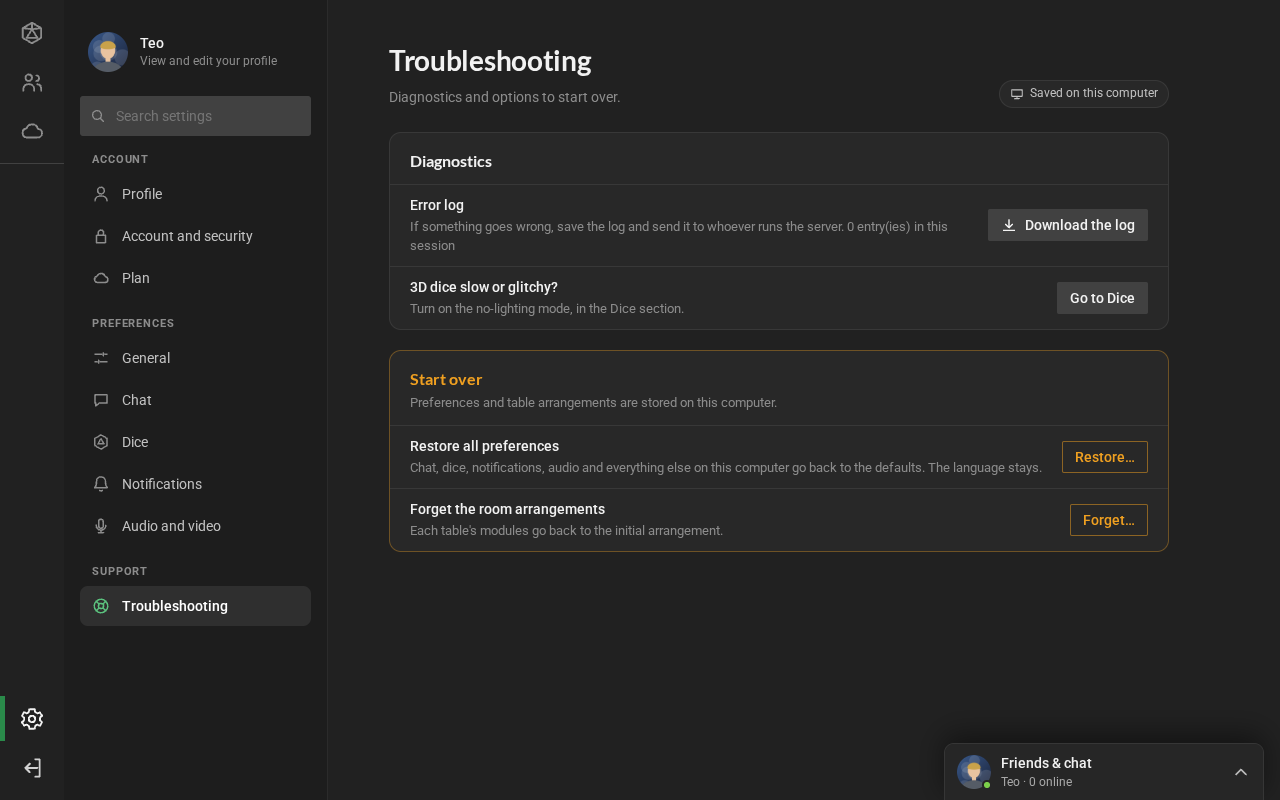
- Diagnostics: Download the log of errors, to send to whoever runs the server when something goes wrong; and, if the 3D dice are slow, Go to Dice takes you to the no-lighting mode.
- Start over: Restore all preferences on this computer (the language stays) and Forget the room arrangements (each room’s tabs and spaces go back to the starting layout). RPG Desk asks first.
On a phone
Section titled “On a phone”Settings opens as a list: your card at the top and the sections in groups, with a summary beside them (the language, the text size). Tapping opens the section; ← Settings goes back to the list.