The home screen
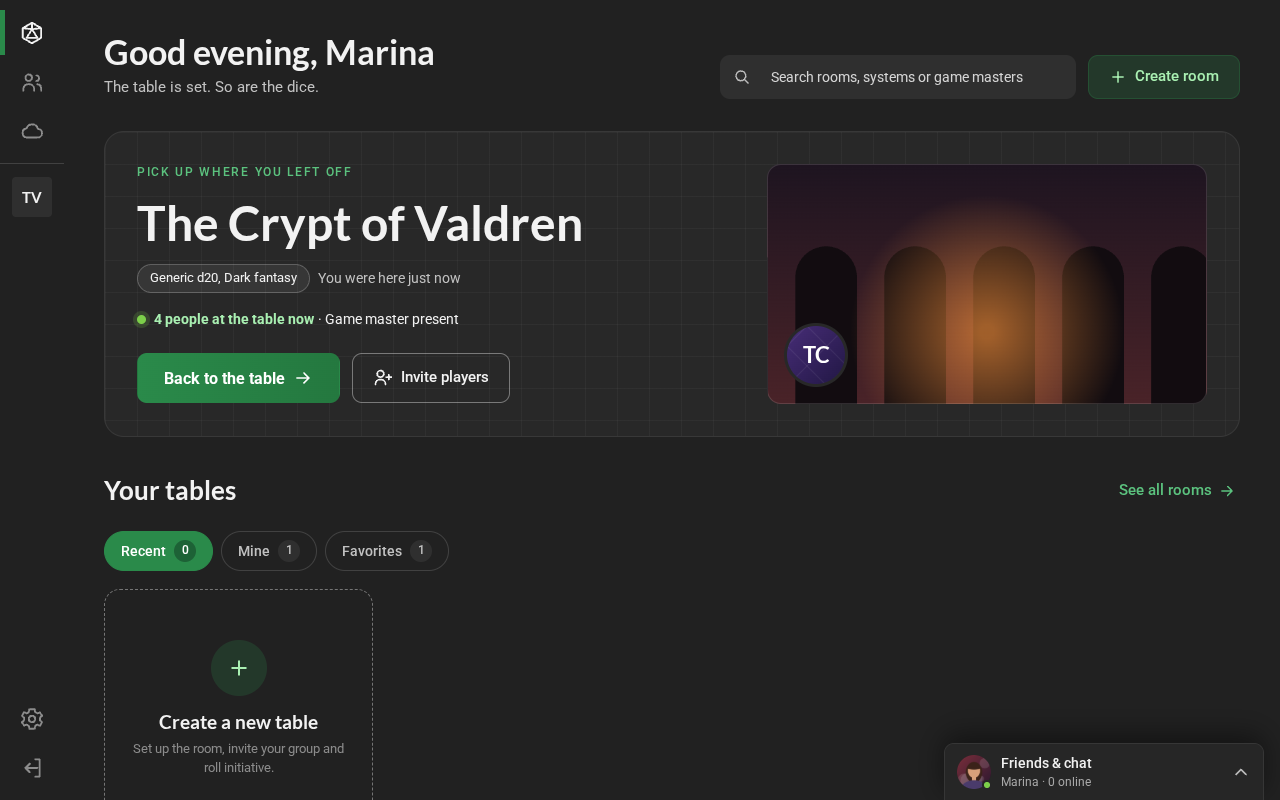
After you sign in, RPG Desk opens on Home. From here you reach everything through the navigation bar on the left.
The navigation bar
Section titled “The navigation bar”From top to bottom:
| Button | What it opens |
|---|---|
| Home | this screen |
| Rooms | Explore, to find and create rooms (see Find a room and join) |
| Desk Cloud | your files stored in RPG Desk (see Desk Cloud) |
| open rooms | one button for each room you are in, with the initials of its name (see Windows and several rooms) |
| Settings | your preferences (see Your preferences) |
| Sign out | ends the session |
Hover over a button to see its name. A number on a room’s button shows what arrived while it was in the background. Friends and conversations are in the Friends & chat panel, in the bottom-right corner (see Profile, friends and conversations).
-
At the top: the search, which looks for rooms by name, system or game master and opens the results in Explore, and Create room.
-
Pick up where you left off: the last room you joined, with its system, whether it has a password, when you were there and how many people are in it now (and whether the game master is). Join the table joins it (or Back to the table, if it is already open); Invite players copies the room link for you to send to your players.
-
Your tables: three tabs, each with how many rooms it has. Your own rooms are only here, not in Explore:
- Recent, where you have been (except the highlighted one);
- Mine, the ones you created or where you are an assistant game master;
- Favorites, the ones you kept from the card’s ⋮ menu.
Click a card to join. If the room has a password, its overview opens first and asks for it. The ⋮ has like, favorite, the overview and copy link. With more than 11 rooms in a tab, Show all opens the rest. See all rooms opens Explore, and Create a new table opens room creation.
-
Looking for a new table?: the systems used most in public rooms. Click one to open Explore on All rooms, with that system ticked; Explore rooms opens Explore.
Prefer to open Explore right away? In Settings → General → When signing in, open, choose Rooms.