
Test and develop
Three tools help you make and fix a sheet: test mode, to test without RPG Desk; development mode, to test inside the room without reinstalling after each change; and page errors, to find what broke.
Test mode
Section titled “Test mode”Open the sheet’s file straight in the browser (double-click it, or drag it onto a tab). Without RPG Desk around it, rpgdesk.js enters test mode:
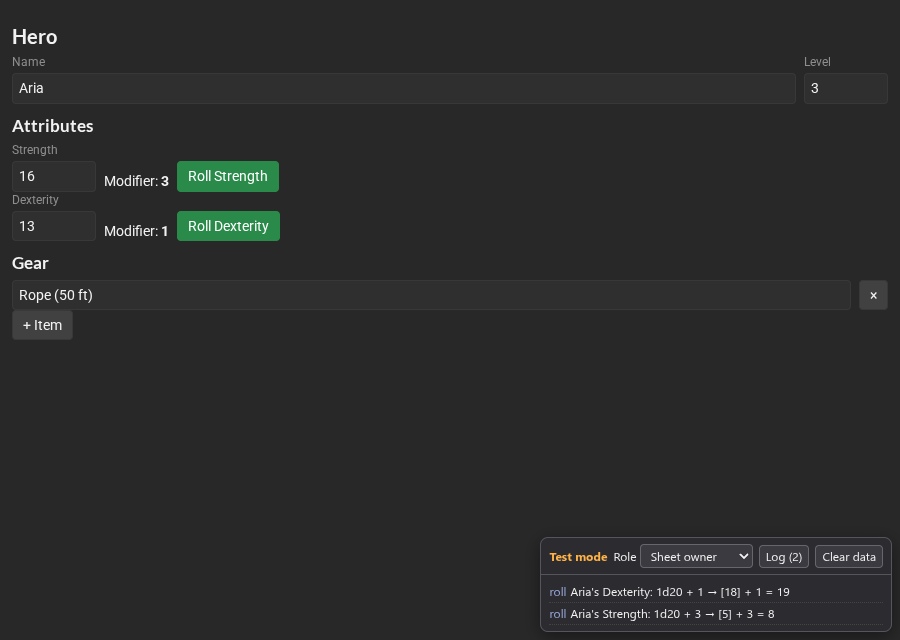
- everything works: fields, lists, tabs, math and rolls (rolled in the browser);
- the data is kept in the browser, and comes back when you reload the page;
- the band in the corner has:
- Role: GM, Sheet owner or Another player. Switch to see what each one sees and can change;
- Log: rolls, chat messages, notices, card bars, (pretend) webhooks and errors. The orange number counts the errors and the refused writes;
- Clear data: starts the sheet from scratch.
The band speaks the browser’s language. The live sheets on this site are in test mode too.
Development mode
Section titled “Development mode”To see the sheet inside the room while you write it, without installing it again after each change:
- Install the plugin in the room once.
- Serve the sheet’s folder with a local server. For example, with Node installed:
npx serve --cors .(it shows the address, likehttp://localhost:3000). - In Room settings → Plugins, click Development on the plugin and type the address of the
sheet’s HTML, like
http://localhost:3000/my-sheet.html. Click Save.
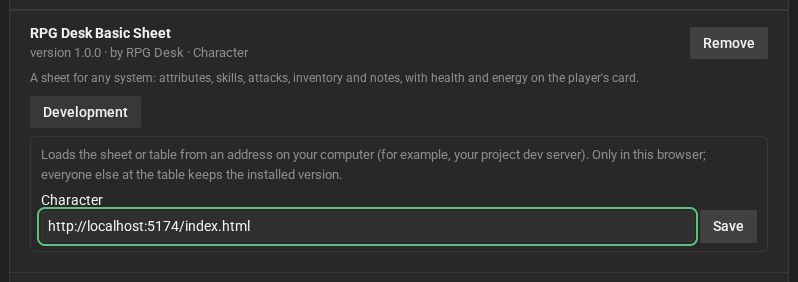
- Sheets of that type now come from your computer, only in your browser: everyone else in the room keeps the installed version. The sheet shows “Development:” and the address at the top.
- Saved the file? Reload the sheet (close and reopen the tab, or Reload if it stops).
- Turn off, on the same screen, goes back to the installed version.
- If the page uses
<script type="module">, the local server must allow CORS (the--corsin the example).
Done? Bump the version and install the new version for everyone. See
New versions.
Page errors
Section titled “Page errors”Inside the room, an error in the sheet’s JavaScript does not show up for whoever is playing, but the sheet shows a triangle with the number of errors in the corner. Click it:
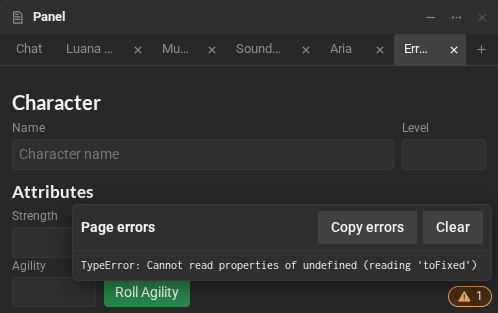
- Copy errors copies the errors, with the sheet, the plugin and the version: paste them in the conversation with the AI or send them to whoever made the plugin.
- Clear empties the list.
When the sheet does not open
Section titled “When the sheet does not open”| The message | What to do |
|---|---|
| The page did not answer. Does it load rpgdesk.js? | check the two rpgdesk.js lines in the <head> and whether the script breaks while loading |
| The page tried to go somewhere else and was closed. | a link, a <form> or a location = … took the page away from the sheet. Use tabs and RPGDesk.ui.openLink |
| The page stopped responding. | an infinite loop or heavy math froze the page. Reload tries again |
The verifier, at install time, already catches most of these problems beforehand.