Desk Cloud
Everything you upload to RPG Desk is kept in your Desk Cloud, the cloud in the bar on the left: a scene’s map, a token’s picture, a song, a PDF sent in the chat. There you organize the files in folders, choose which rooms can open each one and use the files in a room.
The page
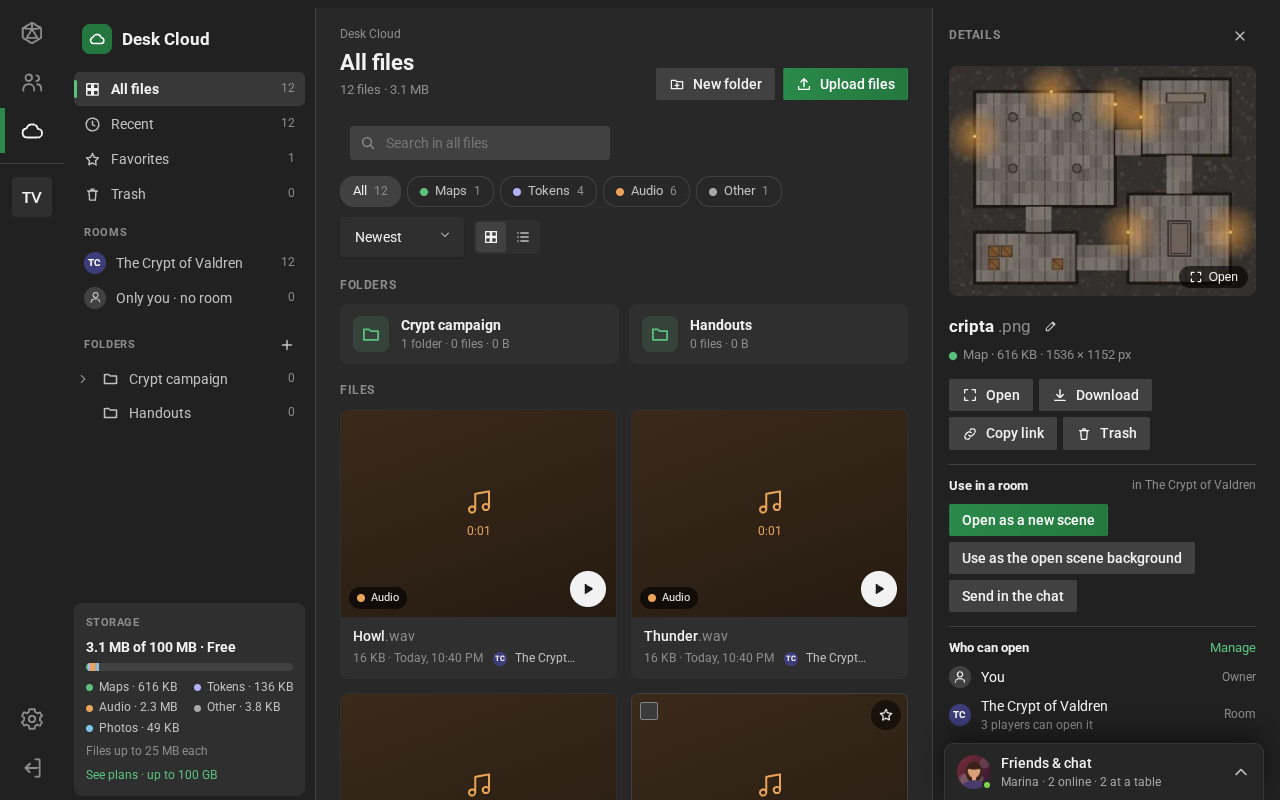
Section titled “The page”- On the left:
- All files, Recent (the ones uploaded or used last), Favorites and Trash;
- Rooms: each room with your files linked to it, and Only you · no room, the ones no room sees;
- Folders: your folders, one inside another. The little arrow opens and closes them, and + creates a folder;
- Storage: the space used and your plan (click it to see the plan), the bar per type, the largest file you can upload and See plans. See Plans and space.
- In the middle, the open place: the path (Desk Cloud › Folders › Campaign), New folder and Upload files, the search, the types, the order and the switch between grid and list. Folders show up as blocks at the top, and files below.
- On the right, the details of the file you clicked: the preview, the name (the pencil renames it), Open, Download, Copy link, Trash, Use in a room, Who can open and the information (the type, the size, the dimensions or the duration, the folder and when it was uploaded).
Each file has a type: Map, Token, Audio, Document or Other. RPG Desk picks it on upload (a small, almost square image is a token; another image, a map; what you drop on the scene, a token). To change it, use Type in the right-click menu.
Uploading
Section titled “Uploading”- Upload files, at the top, or drag files from your computer onto the page. In a folder or a room, the upload goes into it.
- The queue, in the corner, shows each file’s progress and cancels what has not gone yet.
- The space and the largest file depend on your plan: on Free, 100 MB and files up to 25 MB. What goes over the limit never leaves your computer: the queue tells you the limit and shows the plans that take the file.
Finding
Section titled “Finding”- The search looks for the name in the open place (in a folder, also in the ones inside it).
- The type buttons (Maps, Tokens, Audio, Documents, Other) show how many there are of each.
- The order: Newest, Name or Largest first. The grid shows the thumbnails; the list, one row per file, with the rooms that can open each one.
- Audio plays right on the card, only for you.
- A double click (or Open) opens the full-screen preview: the arrows move between files, and Esc closes it. A PDF opens in the browser’s viewer.
The right-click menu
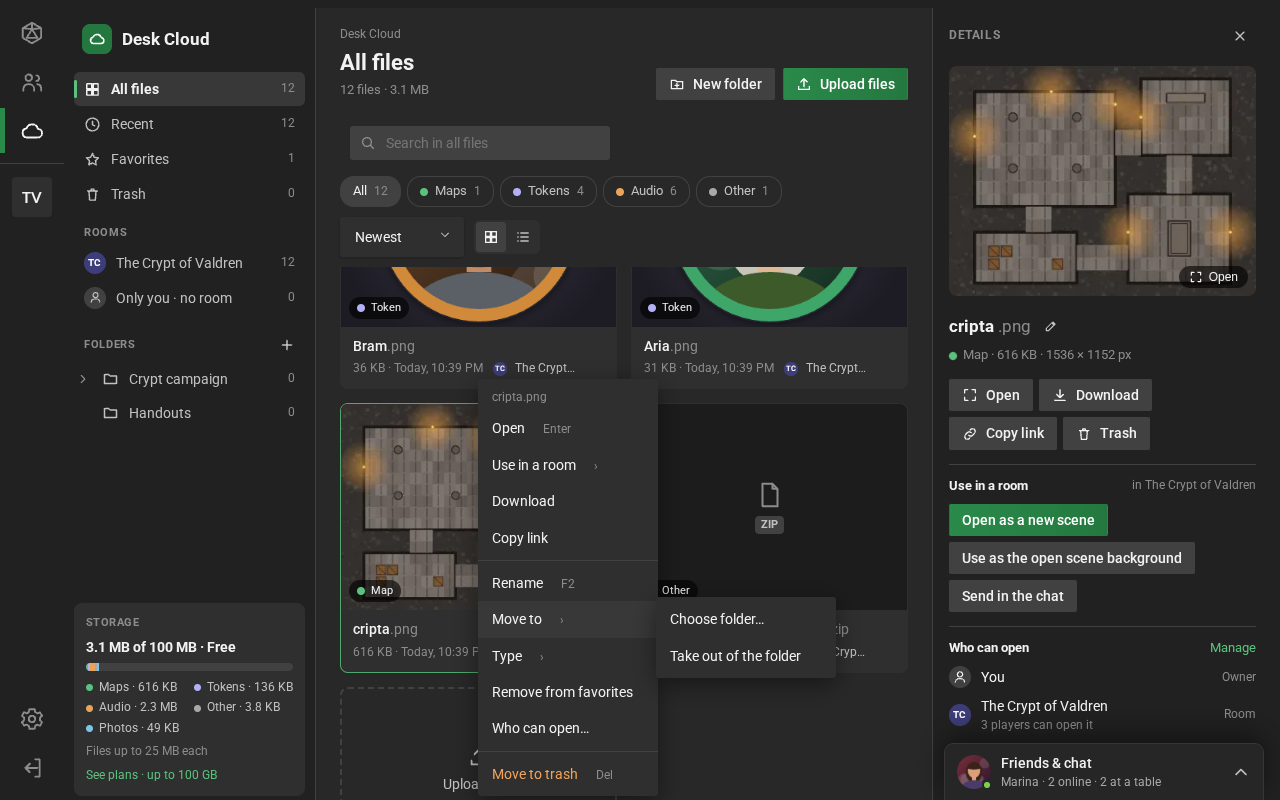
Section titled “The right-click menu”Everything has a right-click menu: files, folders, the rooms on the side, the trash, the empty area and the uploads in the queue. On a phone, hold your finger; … opens the same menu.
| Where | What it has |
|---|---|
| A file | Open, Use in a room, Download, Copy link, Rename, Move to, Type, Favorite, Who can open… and Move to trash |
| Several selected | Download .zip, Who can open…, Move to, Type, Favorite and Move to trash |
| A folder | Open, New folder here, Upload files here, Rename, Move to…, Download .zip and Delete folder |
| A room, on the side | Open the room, Upload files to this room and Download .zip with your files in it |
| The empty area | Upload files, New folder, Select all, Sort by and View as |
| The trash | Restore, Delete forever and Empty the trash |
Folders and selection
Section titled “Folders and selection”- Folders can have folders inside, up to 8 levels. To move, use Move to in the right-click menu or drag the file (or the folder) onto a folder, on the side or in the block. Dragging onto a room on the side links the file to it.
- The “Moved” notice has Undo.
- Selecting several: the card’s checkbox, Ctrl (or Cmd) with a click, and Shift with a click to take a range. With something selected, the bar at the top becomes the one for bulk actions.
| Key | What it does |
|---|---|
| Enter | opens the file |
| F2 | renames it |
| Delete | moves it to the trash (in the trash, deletes it forever) |
| Ctrl+A | selects everything |
| Esc | drops the selection and closes the details |
Who can open
Section titled “Who can open”Linking a file to a room lets the people in the room open the file. Use Who can open… in the right-click menu, or Manage in the details: the rooms where you are a game master show up (and the ones where you play, only to unlink).
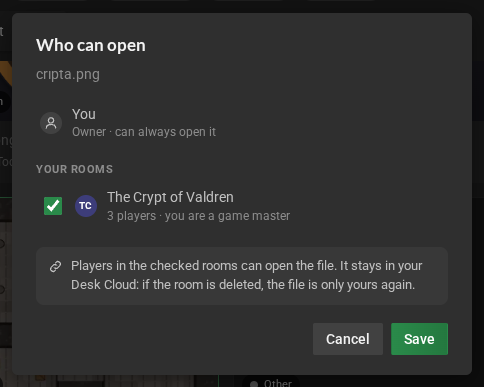
What you use in a room (the scene’s map, the tokens, the songs, the chat attachments) is already linked to it. If the room is deleted, the files stay in your Desk Cloud, only yours.
Use in a room
Section titled “Use in a room”In the details, the right-click menu and the preview, Use in a room does with the file what its type asks for:
| Type | Actions |
|---|---|
| Map | Open as a new scene or Use as the open scene background |
| Token | Put on the open scene |
| Audio | Play for the room or Add to the playlist |
| Any | Send in the chat |
The room opens and RPG Desk does the rest. The scene and music actions are for game masters; sending in the chat works for anyone who can talk in the room. If the file was not linked to the room yet, it is linked first.
The Files tab, in the room
Section titled “The Files tab, in the room”In the room, the Files tab shows the files linked to it, by type (on a phone, it is under More). It opens from the room menu → Tabs → Files.
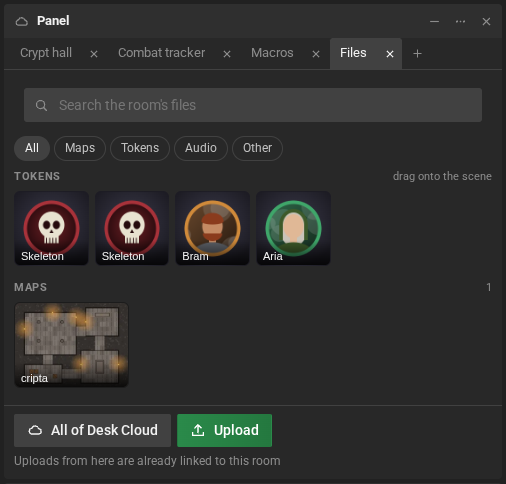
- Tokens: drag them onto the scene, and the token shows up where you drop it.
- Maps: a click opens it as a new scene. The On the scene badge marks the open scene’s background. Dragging onto the scene changes the background (if the scene already has one, RPG Desk asks first).
- Tracks: the button plays them for everyone (and pauses).
- Documents: the button sends them in the chat.
- Any file can be dragged onto the chat (it becomes an attachment), and tracks onto the music player.
- All of Desk Cloud links files you already have to the room; Upload sends new files, already linked to it.
- Players see here only their own files linked to the room.
The trash
Section titled “The trash”- Move to trash takes the file out of the views and the rooms: players can no longer open it. The notice has Undo.
- In the trash, it stays for 30 days and still counts toward your space. After that, it is gone for good.
- Restore brings the file back to its folder and its rooms. Delete forever deletes it right away: maps, songs and messages that used the file stop showing it.
- Deleting a folder moves its files (and the files of the folders inside it) to the trash.
Download and copy link
Section titled “Download and copy link”- Download downloads the file. With several selected, or in a folder, Download .zip puts it all in a zip (a folder goes with the folders inside it), up to 500 files and 2 GB.
- Copy link copies a link to the file, which expires after a few hours.
On a phone
Section titled “On a phone”The top of the page has the space, the search and the place: tap it to choose a view, a room or a folder. Tapping a file opens its details in a sheet; holding your finger starts the selection, with the actions at the bottom. The green button uploads.