Library
The Library keeps what belongs to the room: the characters’ sheets, the scenes (the maps) and the folders that organize everything.
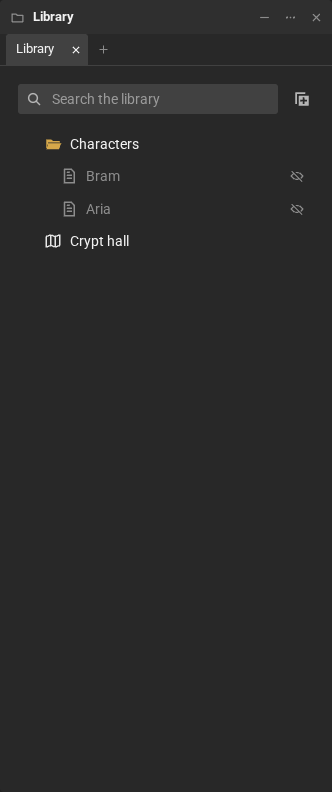
- Double-click an item to open the sheet or the scene in a tab: next to the other sheets (or scenes), in an empty space, or in the last space you clicked (see Tabs and spaces). On a phone or tablet, one tap opens it, and holding your finger on the item opens its menu (the right-click one).
- Right-click → Open in new window opens it straight in a window of its own (see Windows and several rooms).
- Search the library filters the items by name.
The marks next to the name:
- main: your main character’s sheet (see Character sheets);
- yours: another sheet that is yours;
- the crossed-out eye (only the game master sees it): the item is hidden from players.
Create
Section titled “Create”The New item button, next to the search:
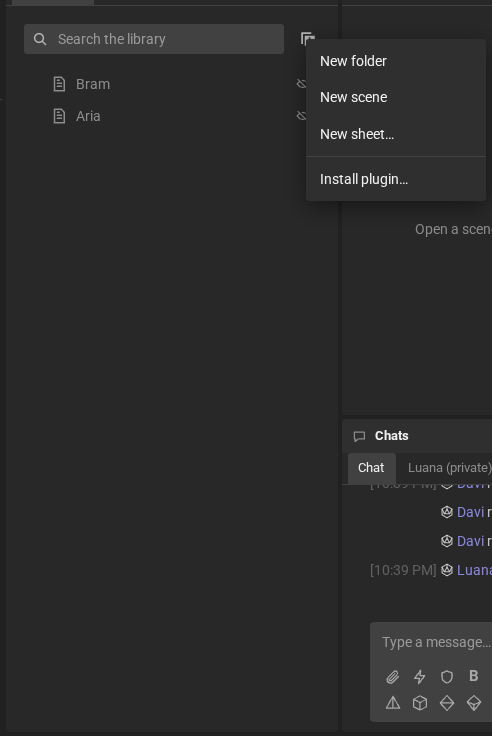
- New sheet…: players and game masters. See Character sheets.
- New folder and New scene: game masters only.
- Install plugin…: game masters only. See Room plugins and tables.
Right-clicking a folder offers the same options, to create the item inside it.
An item’s menu
Section titled “An item’s menu”Right-click the item:
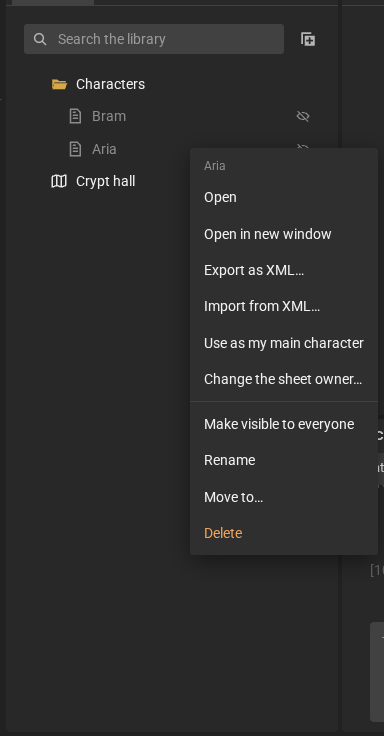
- Open and Open in new window;
- Export as XML…: saves the sheet’s data to a file, for example to take the sheet to another room;
- Import from XML…: replaces the sheet’s data with an exported file’s (what was in the sheet is replaced);
- Use as my main character;
- Rename and Delete: the sheet’s owner and the game masters;
- game masters only: Change the sheet owner…, Make visible to everyone or Make invisible, and Move to… (or drag the item onto a folder).
Only the sheet’s owner and the game masters change a sheet; the others, if they can see it, can only read it. See Players’ sheets for the game master’s side.