
Windows and several rooms
Windows of their own
Section titled “Windows of their own”A window of its own works like the room: it has spaces, each with its tab strip and its +, and inside it you drag, join and split tabs and spaces. Use it to take the map and the tracker to another monitor, for example. It works for every tab: the chat, the library, the participants, the music, the sound effects, scenes, sheets, room tables and private conversations.
- Tabs → New window, in the room menu (right-click the room’s icon), opens an empty window, with a space waiting for tabs.
- More space actions (⋯), at the end of the tab strip, → Open in new window takes the whole space, with all its tabs. Right-clicking the empty part of the strip opens the same menu.
- Right-click a tab → Open in new window takes only that tab.
- In the library, right-click a sheet or scene → Open in new window opens it straight in a window, without going through the room.
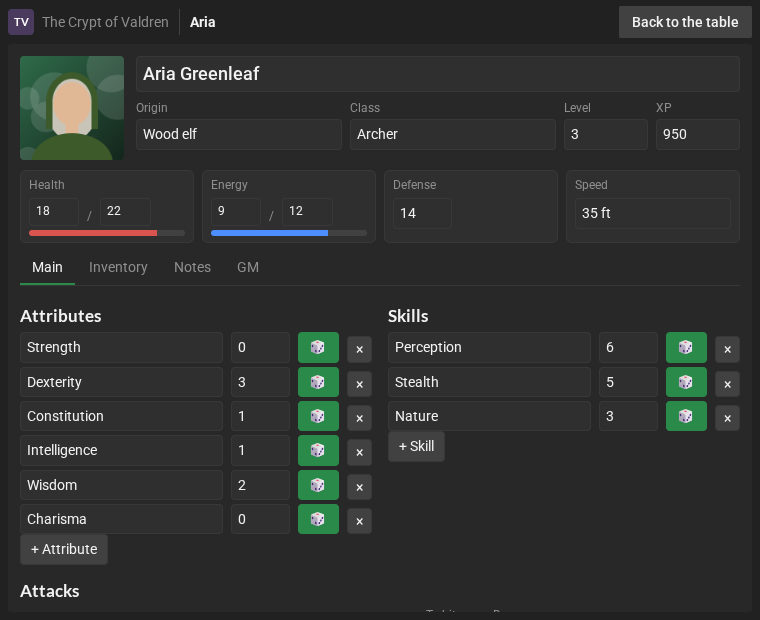
The window opens with the space’s size and position (the new window, larger). At the top, it shows the room, the window’s name and the Back to the table button. The name is the tab in view in the last space you clicked, as in a browser; the empty window is called New window.
Putting tabs in the window
Section titled “Putting tabs in the window”- The tab strip’s +, in the window, opens a tab right there, or brings the one that is in the room (“moves here”).
- In the room, right-click a tab → Move to also lists the windows’ spaces, with the hint In another window. In a window, the hint says In this window, In the room or In another window.
- What you open from the library or the participants that are in the window opens in that window.
- What you open from the room goes with the tabs of its kind, even in a window: with the scenes in a window, the new scene goes there, and the window comes to the front.
- Dragging a tab from one window to another isn’t possible yet: use the + or Move to.
Inside the window
Section titled “Inside the window”- Everything works as in the room (see Tabs and spaces):
- drag tabs and spaces between the window’s spaces;
- near the edge of a space, or at the window’s edges, it splits;
- Ctrl+E arranges the window.
- The ⋯ of a space in the window has Move to the room, which takes it back to the left, the center or the right of the room.
- In a narrow window, with more than one space, all the tabs stay together, as in the room. Widen the window to arrange it.
Closing the window
Section titled “Closing the window”- Closing the window (or Back to the table) brings everything back to the room:
- a space that left the room goes back to the same place, with the arrangement it has now;
- a tab that left on its own goes back to the space it came from;
- what was in a new window goes next to the chat;
- empty spaces don’t come back.
- Moving the last tab of a window somewhere else closes the window. Closing the last tab (its ×) leaves the space empty, and the window stays open.
- The room chat doesn’t leave the main window: a window gets a copy of it, which goes away when the window closes.
- Leaving the room closes its windows.
- Music, voice and the 3D dice stay in the main window only.
Several open rooms
Section titled “Several open rooms”You can be in up to 8 rooms at the same time. Each open room gets a button in the bar on the left, with the initials of its name; hover over it to see the whole name.
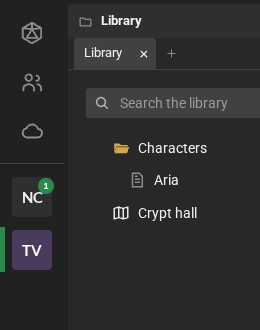
- Entering another room (from Explore or Home) sends the previous one to the background, without leaving it.
- Switch rooms: click its button.
- The number on the button counts the messages and rolls that arrived while the room was in the background. It turns yellow when someone mentions you or sends you a private message.
- Leave a room: right-click its button → Leave room.
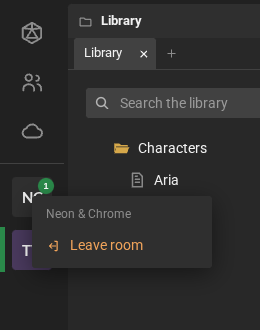
In a room in the background, you are still present for the others and you get the messages. Music, voice, sheets and scenes stay only in the room on the screen: switching rooms ends the previous room’s voice call. Reloading the page reopens the rooms that were open in this tab.