Fog, walls and vision
RPG Desk has two ways to hide the map from players:
- Fog of war: everything starts covered, and you reveal areas with the mouse.
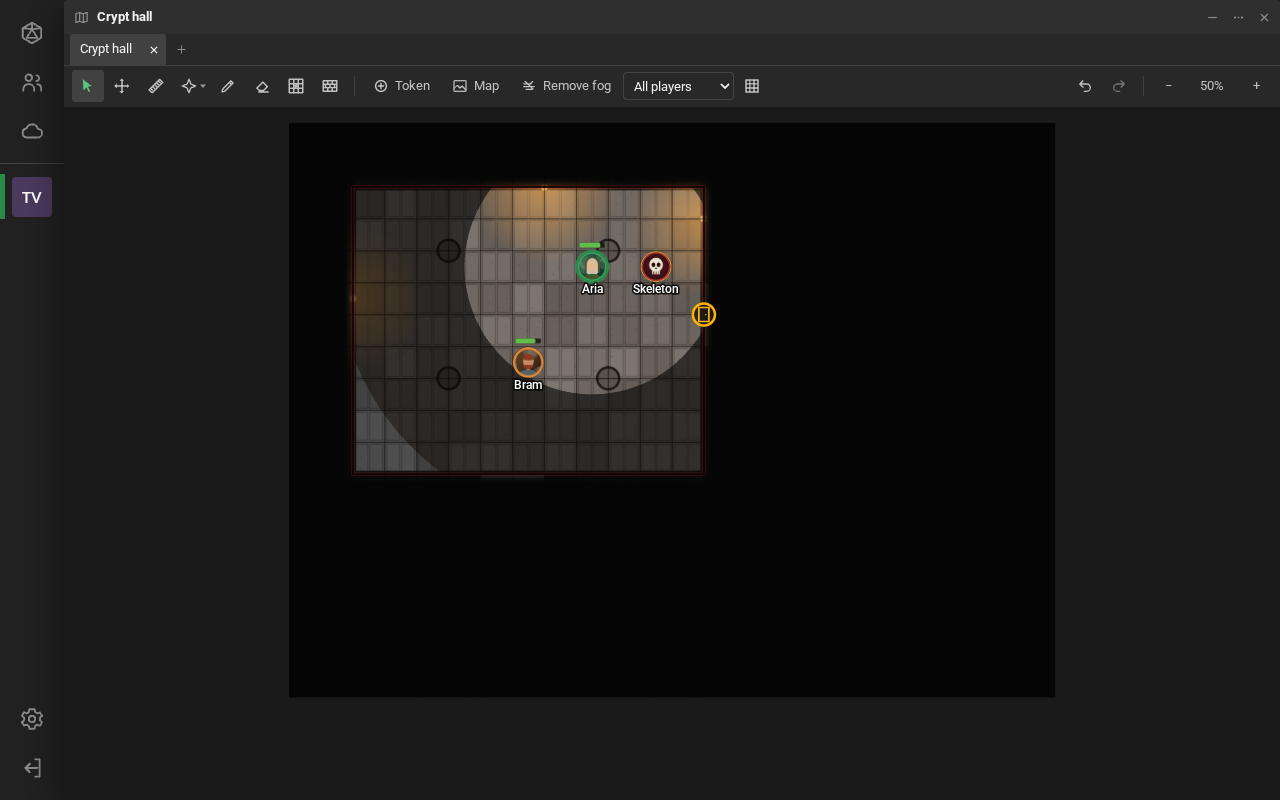
- Token vision: each player sees what their tokens see, with light, sight range and walls. What they have already seen stays dimmed.
Both are in Scene settings (the last button on the scene’s toolbar).
Fog of war
Section titled “Fog of war”- In Scene settings, check Fog of war and click Save. For players, the map turns black; for you, translucent.
- Click Fog tools (the eye, in the toolbar) and choose Reveal fog area (or press F).
- Drag a rectangle over the area to reveal.
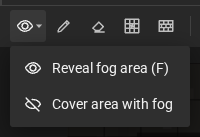
- Cover area with fog hides it again.
- When two rectangles overlap, the last one wins.
- Remove fog, in the toolbar, turns the fog off and erases the revealed areas.
Token vision
Section titled “Token vision”In Scene settings, in the Token vision section:
- Token vision: turns vision on. Players see what their tokens see, and walls block sight;
- Ambient light: Bright / Sunlight, Dim / Twilight or None / Darkness;
- Sharing: Individual vision (each player sees through their own tokens) or Shared vision (every player sees what the group sees);
- Reset exploration: erases what the tokens have already seen.
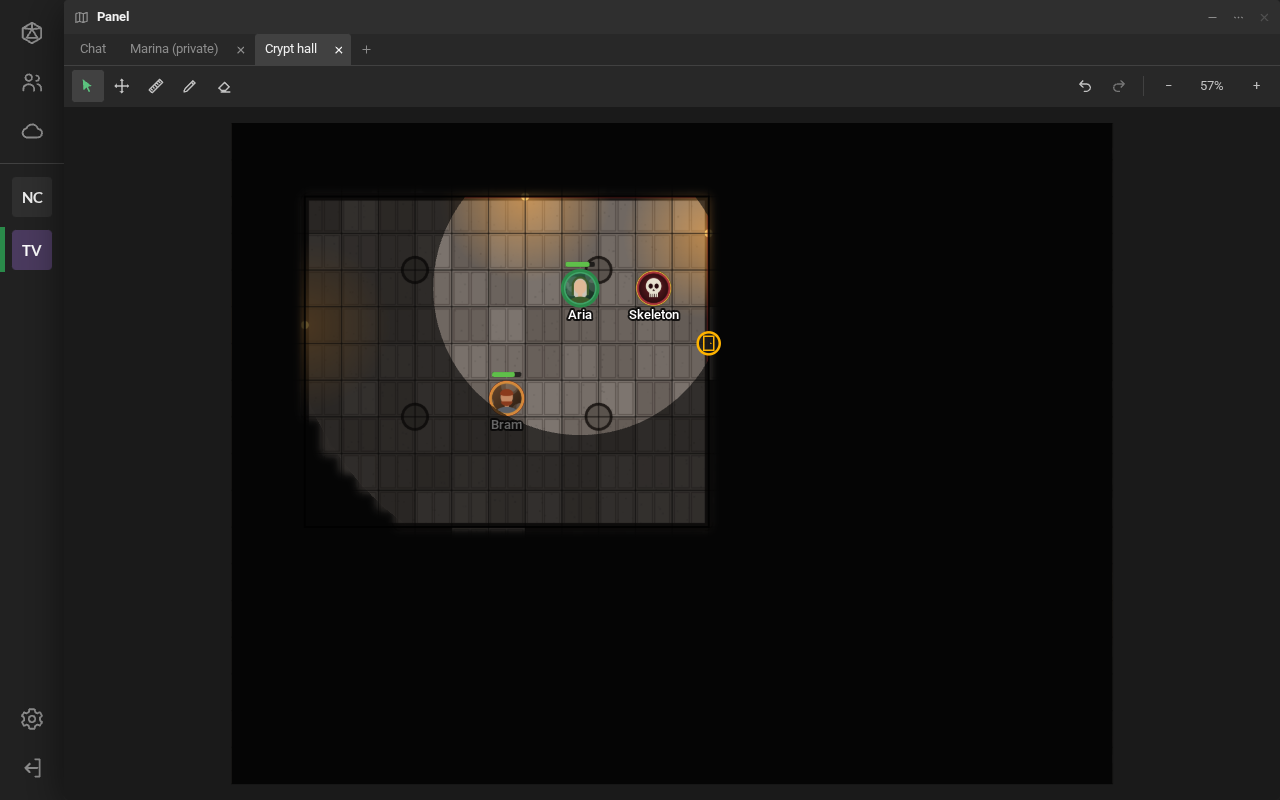
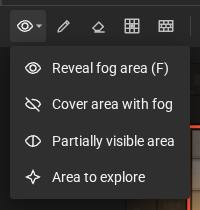
With vision on, the fog tools gain two modes: Partially visible area (shown dimmed) and Area to explore (back to the default: hidden until a token sees it). Reveal fog area leaves the area always visible; Cover area with fog, always hidden.
Each token’s vision
Section titled “Each token’s vision”In the Token properties, the Vision section (only the game master changes it):
- Has vision: for NPCs. A player’s token always gives them vision;
- Range in bright light, in dim light and Darkvision, in the scene’s unit. The defaults are 102 in bright light, 1.5 in dim light and 0 darkvision (0 means not seeing in that light). A dwarf, for example, has 60 ft of darkvision;
- Darkvision: within that range the token sees with no light at all, the map and the tokens. What only darkvision shows appears colorless and darker, so the player knows they see in the dark and not because there is light there. It respects walls and the vision angle;
- Bright light it emits and Dim light it emits: a torch, for example, 20 ft and 40 ft;
- Vision angle and Light angle: less than 360° makes a cone, in the token’s direction;
- Facing: Rotate the image or Show an arrow;
- Light only: players do not see the token, only its light (a lamp on the wall, a campfire).
See as the players
Section titled “See as the players”With vision on, the toolbar gains View the scene as: Game master (everything), All players (what the group sees) or one player, exactly as they see it.
The Walls tool (W) draws the walls that block sight and movement.
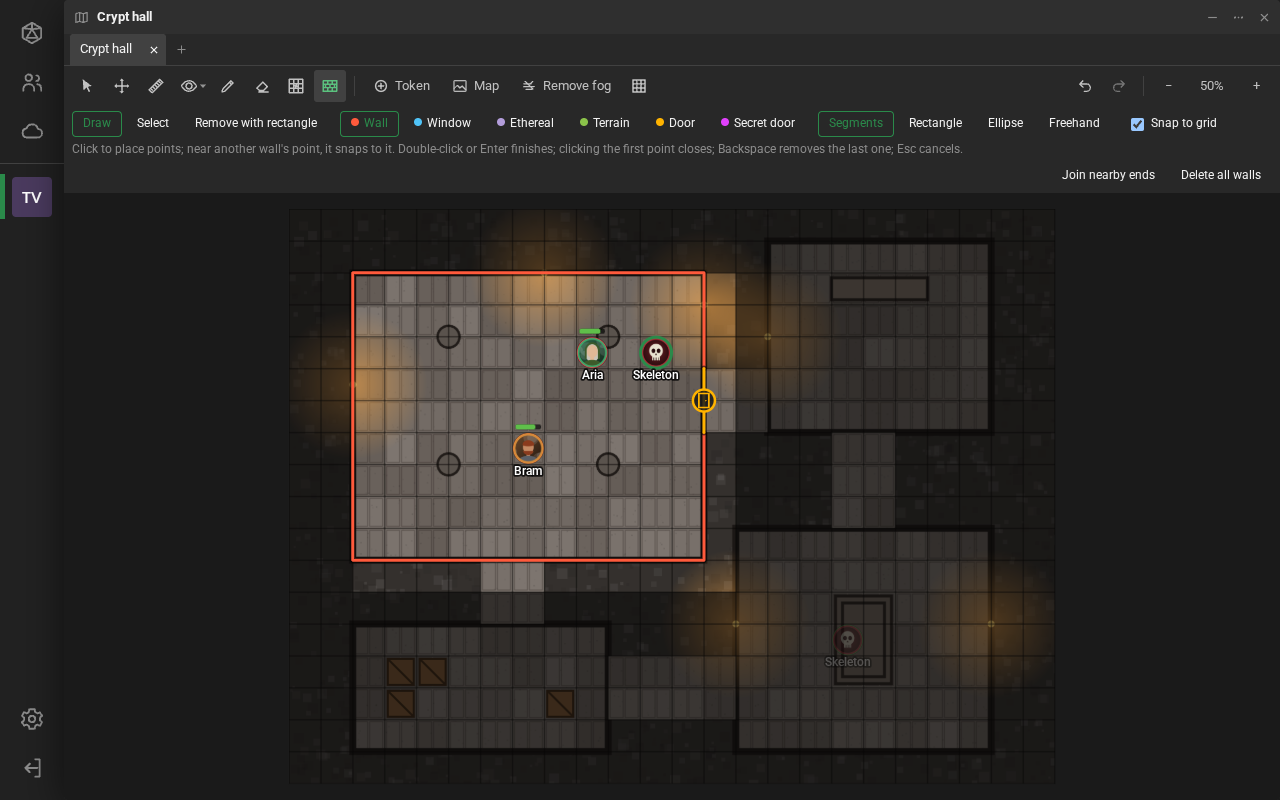
On the options bar:
- Draw, Select or Remove with rectangle (whatever is inside the rectangle is cut out of the walls);
- the type: Wall, Window (you can see through it, but not pass), Ethereal (you can pass, but not see), Terrain (you see the object, but not what is behind it), Door and Secret door;
- the shape: Segments, Rectangle, Ellipse or Freehand;
- Snap to grid: the points land on the corners and middles of the cells;
- Delete all walls.
With Segments: click to place the points; a double-click or Enter finishes; clicking the first point closes the shape; Backspace removes the last point; Esc cancels. A Door takes two clicks: the start and the end.
In Select, click a wall (Shift adds) or drag a box; drag a vertex to move it; Delete removes. A double-click opens the Wall properties:
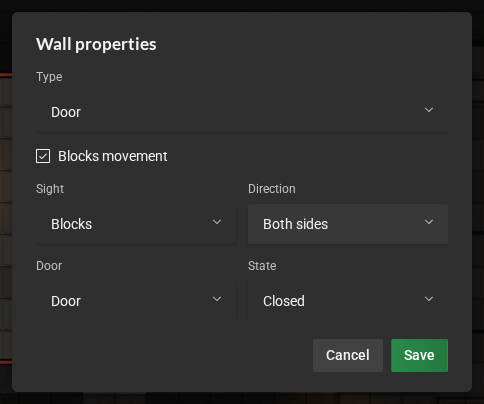
- Blocks movement;
- Sight: Blocks, Limited (terrain) or Does not block (window);
- Direction: both sides, or only for whoever is on one side (left and right count going from the first point to the second);
- Door and State: Closed, Open or Locked. Only two-point walls can be doors.
Seamless joints: a point drawn or dragged near another wall’s point (less than a quarter of a cell away) snaps to it, and the two walls make one continuous joint. Walls already on the map whose ends almost touch don’t let sight through the gap between them either. To join those ends for good, use Join nearby ends on the bar: it works on the selected walls, or on all of them. There’s no need to stack walls over the joint.
Terrain: limited sight
Section titled “Terrain: limited sight”A wall with limited sight (the Terrain type) hides nothing on its own. The rule:
- sight passes the first limited wall it crosses;
- and stops at the second.
So outline the whole object (the rock, the pillar, the pile of rubble), closing the shape on the first point. Sight enters the object through the front edge and stops at the back one: players see the object, but not what is behind it. An open line, on just one side of the rock, lets them see everything; in that case, the wall properties warn you. Two terrain lines one behind the other also block.
With a one-sided Direction, the limited wall only counts for whoever looks from that side; whoever looks from the other side sees through it.
The player’s view and the game master’s View as follow the same rule.
- Players open and close a door by clicking its icon. So does a spectator who controls a token in the scene. A locked door rattles, and you get the notice “Davi tried to open a locked door”.
- You lock and unlock it by right-clicking the door. Only you see the padlock. A locked door only unlocks with the right button: a normal click does not open it, not even for you.
- A secret door is a wall to the players: they do not see it until you open it.
Door sounds are turned off in Settings → Notifications → Scene sounds.
Import a UVTT map
Section titled “Import a UVTT map”Maps from editors like Dungeondraft can be exported as UVTT (.uvtt, .dd2vtt or .df2vtt). To
import: Scene settings → Import UVTT map…, or drop the file onto the scene. RPG Desk brings:
- the map image, already fitted to the grid;
- the walls and doors (real doors, which open and close);
- the lights, as “light only” tokens on the map layer.
Fog and token vision are turned on. The file can have about 4/3 of your plan’s largest file, plus 2 MB (the image is embedded in it), and Ctrl + Z undoes the whole import.