Chat
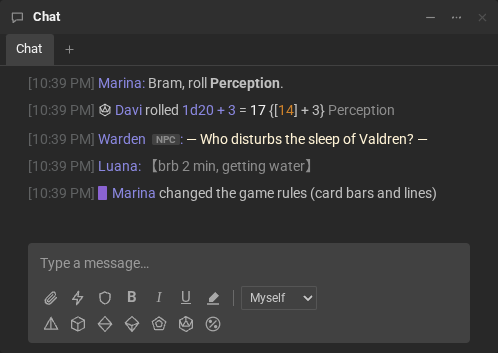
The chat is the heart of the room: conversation, narration, rolls and notices (who joined, who became a player) all show up in it, in order. The start and the end of each game session show as dividers (see the session clock).
Writing
Section titled “Writing”- Enter sends; Shift + Enter breaks the line.
- Up arrow brings back your previous messages, one per press (to repeat a roll, for example). Down arrow goes forward again.
- While someone is typing, the chat says so: “Luana is typing…”.
- A line that starts with
/is a command:/r 1d20+5rolls the dice,/menarrates an action. See Chat commands.
The message box
Section titled “The message box”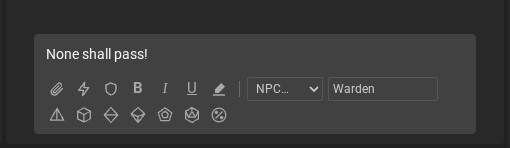
In the first row of buttons:
- Send file (the paper clip): sends an image or another file to the chat;
- Manage macros (the lightning bolt): see Macros;
- Bold, Italic, Underline and Text color: apply the style to the selected text;
- Speak as: Myself, Narrator or NPC…, with the NPC name next to it. The message goes out with the narrator’s or the NPC’s name instead of yours.
In the second row, the Quick dice: one click rolls 1d4, 1d6, 1d8, 1d10, 1d12, 1d20 or 1d100.
Formatting
Section titled “Formatting”The chat understands simple markup:
| You type | It shows |
|---|---|
_italic_ |
italic |
**bold** |
bold |
*action* |
the character’s action, highlighted |
"speech" |
the speech, in curly quotes |
--dash speech-- |
— the speech with dashes — |
((out of character)) |
the out-of-character comment, in brackets |
{O}nce upon a time |
the drop cap, large |
:sorriso:, :dado:, :) |
😄, 🎲, 🙂 |

Headings (# Heading), separators (---), colors and links work too. The complete list, with the
color codes and the emoji, is in Chat formatting. If you dislike
some markup, you can turn it off for yourself in Settings → Chat → Message formatting.
Files and images
Section titled “Files and images”To send a file: the paper clip, drag the file onto the chat (Drop to send shows up) or paste an image with Ctrl + V. The file stays attached above the message box, with the thumbnail (for images) and the name; the × removes it. It only goes when you press Enter (or the send button), and whatever you write along goes as its caption, in the same message. While it uploads, sending… shows. Images show up in the conversation with the file name underneath; other files, with the name, the size and the Download button. The file is kept in your Desk Cloud, linked to the room.
You can also drag an image into the chat: someone’s photo from the Participants list, a token or an image from another site. It is attached as an image, not as an address in the text box.
Click an image in the chat to see it large, over the room. There, Open in another tab shows just the image in a browser tab; Close or Esc takes you back to the chat.
Mentions
Section titled “Mentions”Type @ and someone’s name (or nickname) to call them. They hear a sound and, if the room is in the
background, the number on the room’s button turns yellow.
Private and group conversations
Section titled “Private and group conversations”- Private: right-click someone’s name, in Participants, and choose Talk privately. The conversation opens in a tab of its own, next to the room chat, “Marina (private)”, on both sides.
- Group: Start a group chat, in the same menu, or + → Private group chat…, and pick the people. In the conversation’s tab, Invite more calls other people and Leave chat leaves it.
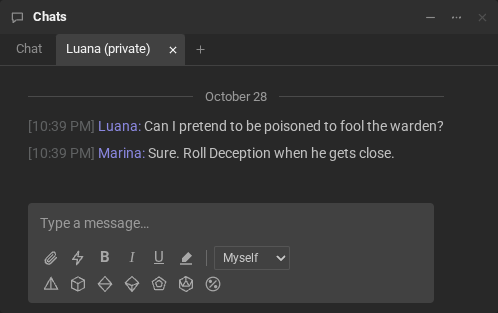
What is said in a private conversation does not show up in the room chat.
Your name in the room
Section titled “Your name in the room”/nick Raven changes your name in this room only; /nick, with nothing, goes back to your account
name. The same is in your name’s menu, in Participants → Change my nickname.