
Voice and video
Each room has its own voice and video conference. It opens from the Voice and video button (the microphone), at the top of the Participants tab, above the list; the same button closes it. During a call, the button takes the brand color.
Join and leave
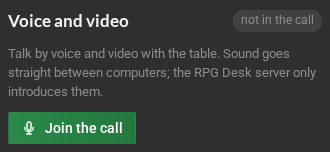
Section titled “Join and leave”- Click Voice and video and then Join the call.
- The first time, the browser asks to use the microphone: allow it.
- To leave, Leave the call (the orange phone), in the same panel.
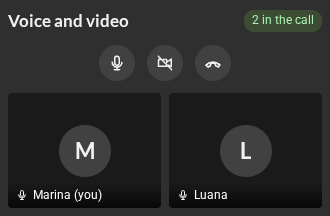
- The microphone button mutes and turns on your microphone; the camera button turns the video on and off.
- Each person in the call has a tile, with their video (if the camera is on) or their initial.
- With the camera on, your photo in the Participants list becomes your live webcam video; when you turn it off, the photo comes back. People in the call see the others’ video there too; people outside the call (and the list opened in its own window) keep seeing the photo.
- You can close the panel: the conversation goes on. The button stays highlighted while you are in the call.
- Switching rooms ends your participation in the previous room’s call.
Devices
Section titled “Devices”In Settings → Audio and video:
- the Quick test: Turn the preview on shows your camera, and Test the microphone shows the volume of your voice, to check the right microphone is selected;
- the Microphone, the Camera and the Audio output (the headphones or speaker for the voices) RPG Desk uses. The default is the system’s; Safari does not let you pick the output;
- Join with the microphone on and Join with the camera on.
Trouble with the sound? See Common problems.