Music and sound effects
The room has its music, the same for everyone and at the same point, and a sound effects board (a creaking door, thunder) that the game master plays on the spot. Both open from the room menu (right-click the room’s icon, in the bar on the left) → Tabs (Music or Sound effects), as tabs, in an empty space or in the last space you clicked.
Music, for players
Section titled “Music, for players”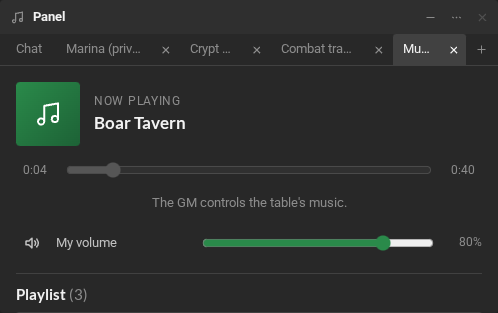
- Now playing shows the track and its position. The playlist shows up below.
- My volume changes only what you hear.
- The game master controls the music.
- Closing the module does not stop the music: it keeps playing while you are in the room.
Music, for the game master
Section titled “Music, for the game master”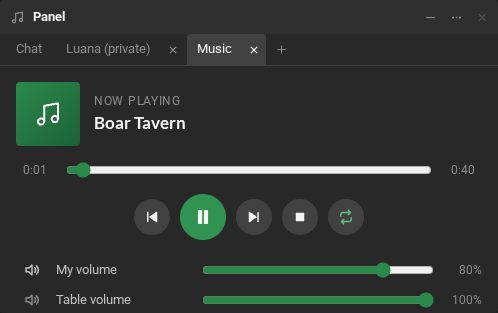
- Build the playlist: Upload audio files… (the upload icon, next to Playlist), Add by link… (the chain icon) or drag audio files onto the module.
- Controls: previous, play or pause, next, stop and repeat (Repeat playlist, Repeat this track or No repeat). Dragging the position skips the music for everyone.
- Table volume applies to everyone; My volume, only to you.
- Click a track to play it now. The × next to it removes the track from the playlist.
Sound effects
Section titled “Sound effects”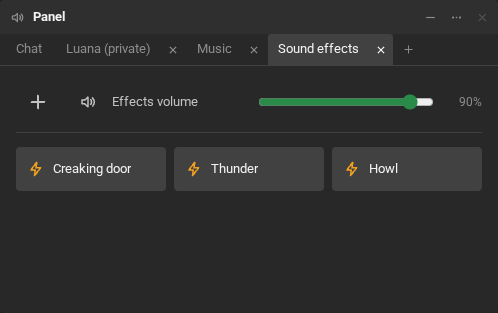
- The game master adds effects with the + or by dragging audio files onto the board.
- One click on an effect plays it for the whole room. Right-clicking it offers Remove.
- Effects volume is your volume for the effects.
The overall volume of everything (music, effects and notices) is in Settings → Notifications → Overall volume.